Troubleshooting GuardPoint10 Server Transaction Delays
Overview
If transactions are delayed or not appearing in GuardPoint10, the issue is typically related to how events are processed between controllers, services, and the SQL database.
In a standard setup:
Controllers send events to the AcsNMService
Events are written temporarily as files
These are then inserted into the SQL database
Finally, they are displayed in the Event Log
The key services involved are:
AcsNMService – handles controller communication and event collection
GPPServer – processes data and updates the database and GUI
Step 1 – Backup the System
Before carrying out any troubleshooting:
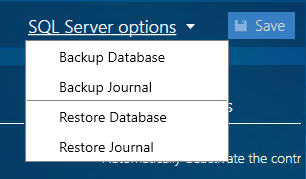
Backup the AC8Default (Main Database)
Backup the AC8Journal (Journal Database)
Step 2 – Check Transaction Processing Folder
Navigate to:
C:\ProgramData\ACS\NM\Split\PolEvt1

Expected Behaviour
Folder should be empty
Only a subfolder named “messages” should exist
Issue Indicator
Large number of files in this folder
→ Transactions are not being written into the database
Resolution
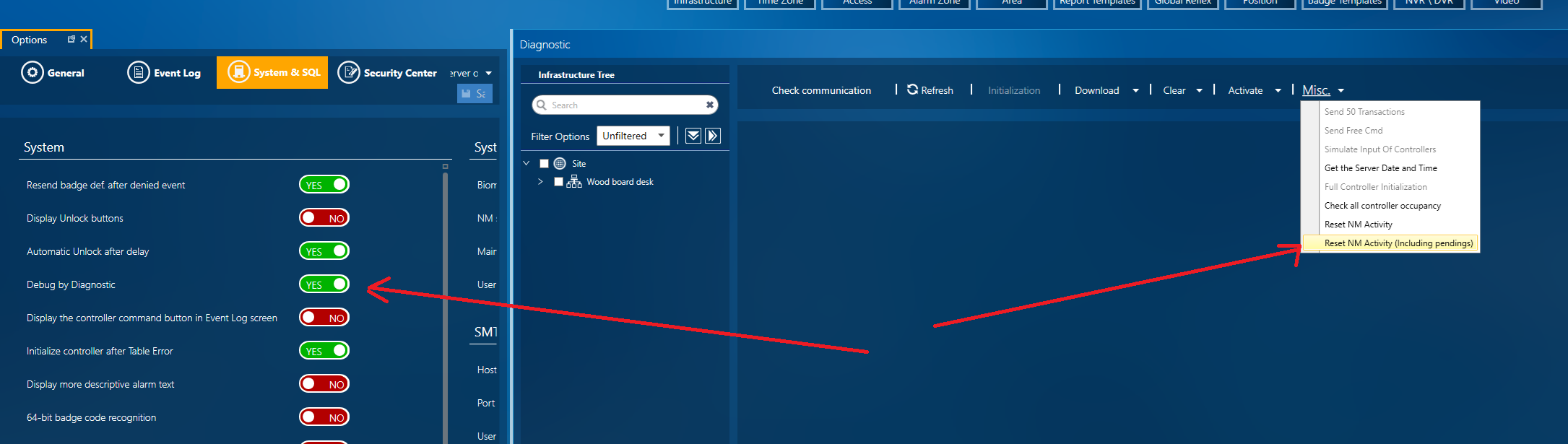
Enable Debug by Diagnostics
Perform:
Reset NM Activity
Clear any pending transactions
This forces the system to reprocess stuck transaction files.
Step 3 – Check Antivirus Interference
Antivirus software can significantly impact performance by scanning every transaction file created.
Symptoms
Slow or delayed events
Intermittent transaction appearance
High disk activity
Resolution
Add exclusions for:
C:\ProgramData\ACS\GuardPoint10 installation directory
SQL Server directories
Note: Antivirus interference is a known cause of performance issues and should always be checked.
Step 4 – Check Database Size Limits
GuardPoint10 uses two databases:
AC8Default – system database
AC8Journal – event log database (can grow very large)
Important
SQL Express has a 10GB size limit
If exceeded:
Performance will degrade
Transactions may be delayed
What to Check
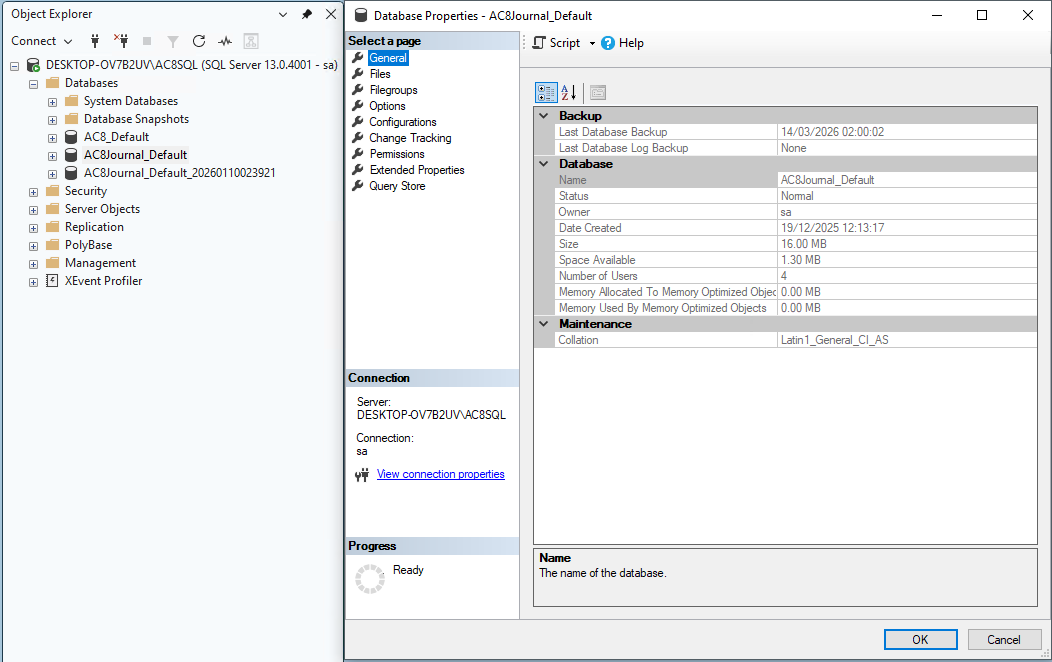
Database size in SQL Server Management Studio
Focus especially on AC8Journal
Resolution
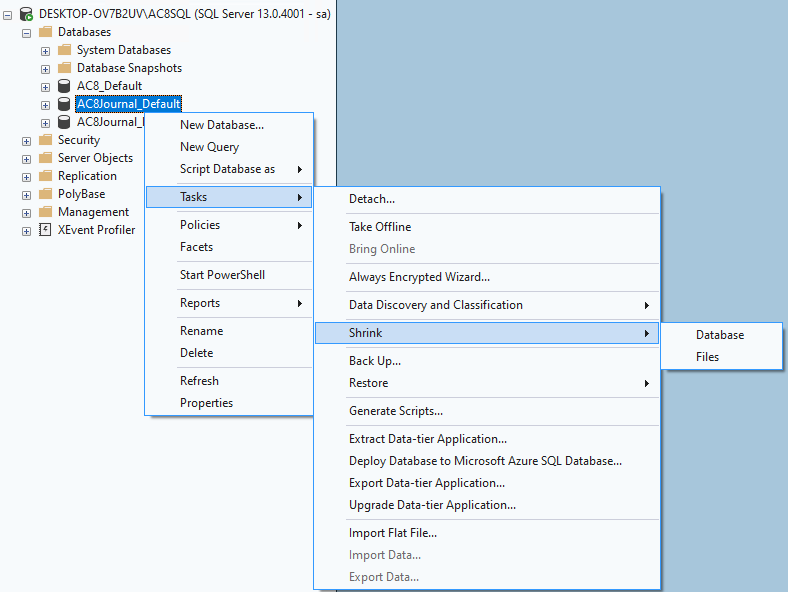
Archive or reduce journal size
Upgrade SQL version if needed
Step 5 – Check Software Version
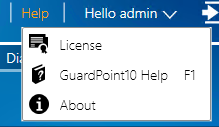
Ensure the system is running the latest version of GuardPoint10.
Current version: 1.160.4
Check via:
Help → License
New versions include:
Performance improvements
Bug fixes related to event handling
Database and service optimisations
Step 6 – Check Disk Performance & Free Space
GuardPoint10 is heavily dependent on disk performance.
What to Check
Free disk space (minimum 20GB recommended for server)
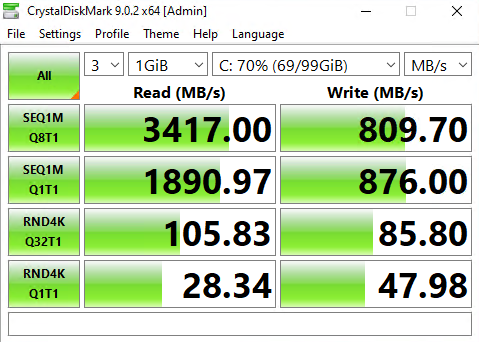
Disk read/write speed
Recommended Tool
CrystalDiskMark
Expected Performance
Ideally >1000 MB/s (SSD)
Symptoms of Poor Disk Performance
Slow transaction processing
Backlog in NM folder
General system lag
Step 7 – Check Network Latency
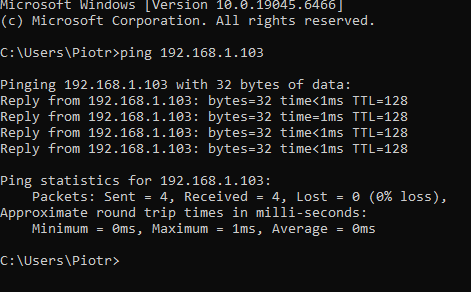
A consistent delay (e.g. ~5–10 minutes) can indicate network-related issues.
What to check
Ping from:
Controller network → Server
API source → Server
Look for
High latency
Packet loss
Intermittent connectivity
Impact
Transactions are delayed before reaching the server
API events queue instead of processing in real time
Step 8 – Check Firewall / Traffic Inspection
Firewalls may allow traffic but still introduce delays through inspection or throttling.
What to check
Windows Firewall
Site firewall / router
Common Issue
Deep packet inspection delaying:
Controller communication
API traffic
Resolution
Whitelist:
GuardPoint10 services
SQL Server
API ports (HTTP/HTTPS)
AcsServer.exe |
Step 9 – Check Controller Communication Stability
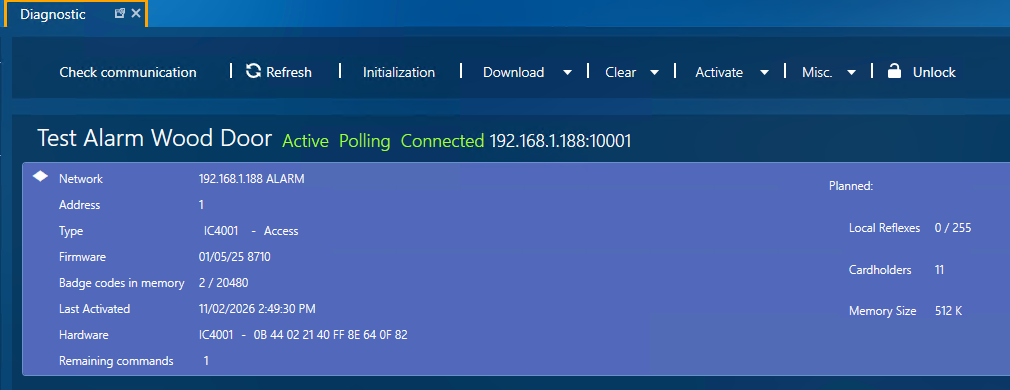
Even if controllers are initialised, communication may still be unstable.
Symptoms
Doors operate normally
Events appear late in software
This indicates controllers are operating in standalone mode, while communication with the server is delayed
What to check
Controllers online status
Communication interruptions
Network reliability
Step 10 – Check Time Synchronisation
Ensure all system components are using the same time.
Check
Server time
Controller time
API system time
Impact
Mismatched time can make events appear delayed or out of order
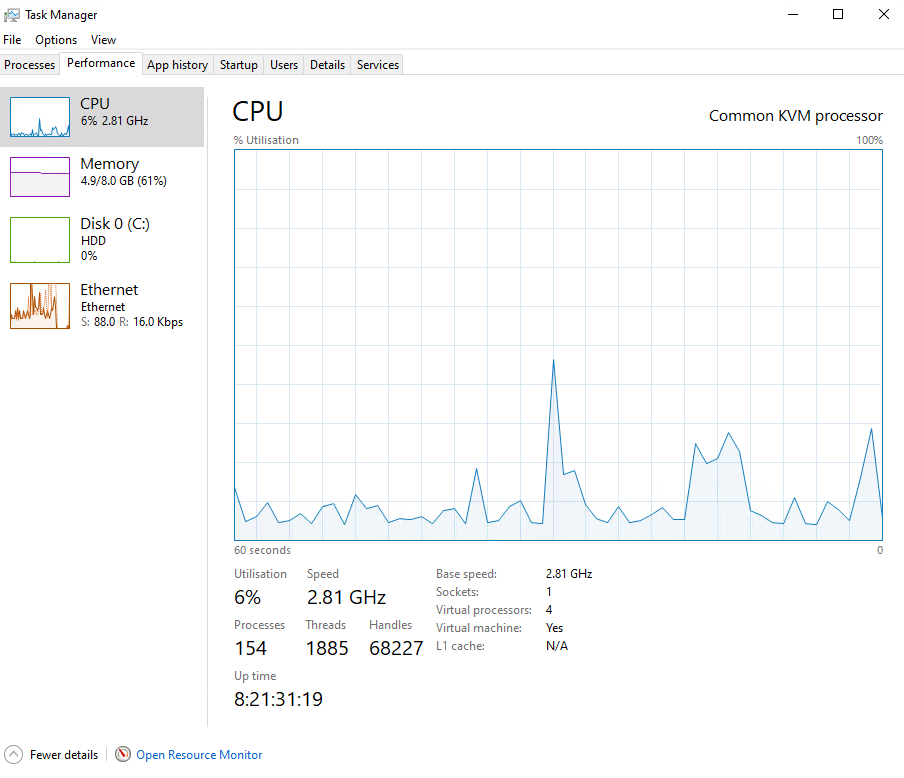
Step 11 – Check System Resource Usage
High system load can cause transaction queuing.
What to check
CPU usage
RAM usage
Disk utilisation
Typical Symptoms
Delayed API transactions
QR events appearing late
General system slowdown
Was this article helpful?
That’s Great!
Thank you for your feedback
Sorry! We couldn't be helpful
Thank you for your feedback
Feedback sent
We appreciate your effort and will try to fix the article