GuardPoint10 - Using an Existing SQL Server Installation
This guide explains how to install GuardPoint 10 using an existing Microsoft SQL Server instance instead of the bundled SQL Express installation.
GuardPoint 10 supports Microsoft SQL Server 2016, 2017, 2019, 2022 and 2025 releases in both Express and Standard editions.
Note: While we have tested multiple SQL versions successfully, environmental or SQL configuration differences may occasionally cause issues. If you encounter problems during setup, contact Sensor Access Technical Support.
Before You Begin
Before installing GuardPoint 10:
- Install Microsoft SQL Server
- Install SQL Server Management Studio (SSMS)
- Confirm you can connect to the SQL instance using SSMS
- Ensure TCP/IP is enabled on the SQL Server instance
- Confirm the SQL Server service is running
Step 1 – Create the GuardPoint 10 Databases
Open SQL Server Management Studio (SSMS).
Create the following two databases exactly as shown below:
| Database Name |
|---|
| AC8_Default |
| AC8Journal_Default |
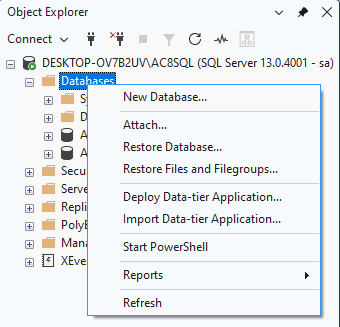
To create a database
- In SSMS, expand the SQL Server instance
- Right-click Databases
- Select New Database
- Enter the database name
- Click OK
 | 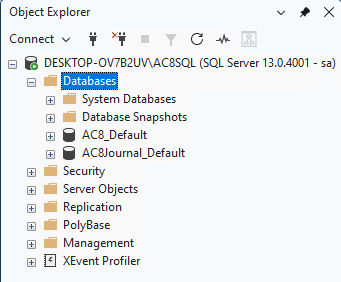 |
Repeat for both databases listed above.
Step 2 – Configure SQL Permissions
The required SQL permissions must be configured before installing GuardPoint 10.
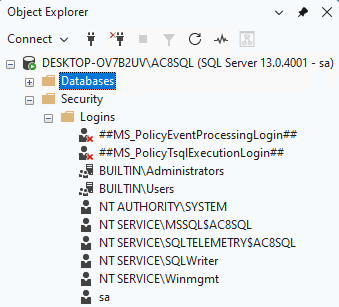
Verify NT AUTHORITY\SYSTEM Permissions
Follow this guide:
How to Verify NT AUTHORITY Permissions in SQL Server
Step 3 – Configure the sa Account
GuardPoint10 uses the SQL sa account to connect to the SQL database, so the account must be enabled and correctly configured.
Make sure that:
- SQL Server is configured for SQL Server and Windows Authentication mode (Mixed Mode).
- The
salogin is enabled. - Password policy enforcement is disabled if required for the password being used by GuardPoint10.
- The GuardPoint10 databases are owned by
sa.
If you are already connected to SQL Server using a Windows account with sysadmin permissions, the following script can be used:
| Enable Mixed Mode Authentication |
|---|
| USE [master]; GO EXEC xp_instance_regwrite N'HKEY_LOCAL_MACHINE', N'Software\Microsoft\MSSQLServer\MSSQLServer', N'LoginMode', REG_DWORD, 2; GO |
Enable the sa Login |
|---|
| ALTER LOGIN [sa] ENABLE; GO |
| Disable Password Policy and Expiry Checks |
|---|
| ALTER LOGIN [sa] WITH CHECK_POLICY = OFF, CHECK_EXPIRATION = OFF; GO |
Set sa as Owner of the GuardPoint10 Databases |
|---|
| USE [master]; GO ALTER AUTHORIZATION ON DATABASE::[AC8_Default] TO [sa]; GO ALTER AUTHORIZATION ON DATABASE::[AC8Journal_Default] TO [sa]; GO |
Important: After changing the authentication mode, restart the SQL Server service before attempting to connect using sa.If the sa password needs to be set or changed, run:
Set or Change the sa Password |
|---|
| ALTER LOGIN [sa] WITH PASSWORD = 'YourNewPassword'; GO |
Use the same sa password when configuring the SQL connection in GuardPoint10.
If you receive:
Create failed for User 'sa'. (Microsoft.SqlServer.Smo)
Run:
| Correct GuardPoint10 Database Ownership |
|---|
| USE [master]; GO ALTER AUTHORIZATION ON DATABASE::[AC8_Default] TO [sa]; GO ALTER AUTHORIZATION ON DATABASE::[AC8Journal_Default] TO [sa]; GO |
Then retry the GuardPoint10 configuration.
Step 4 – Configure a Custom SQL Login [Optional]
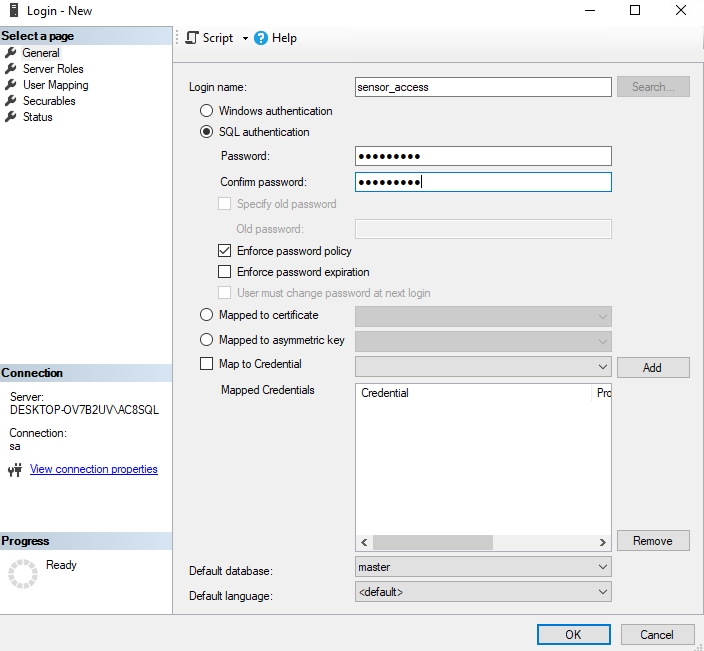
If preferred, you may create a dedicated SQL login specifically for GuardPoint 10 instead of using the sa account.
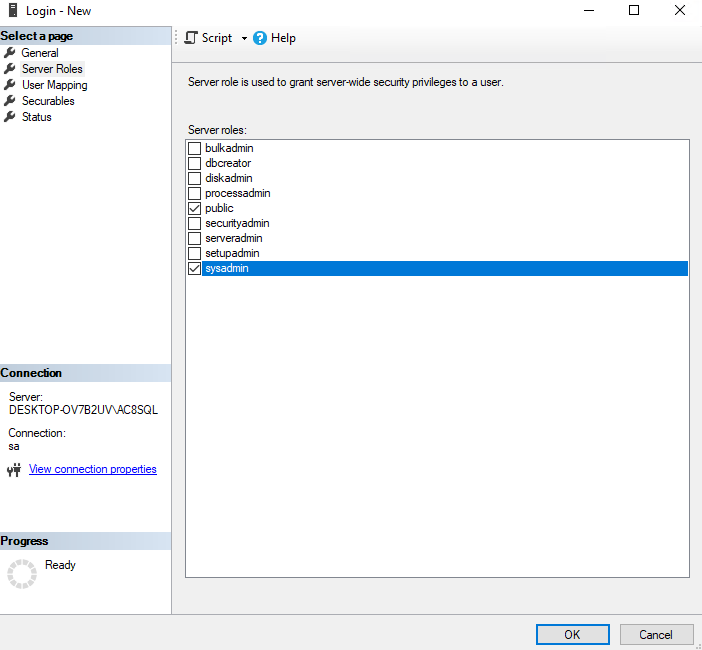
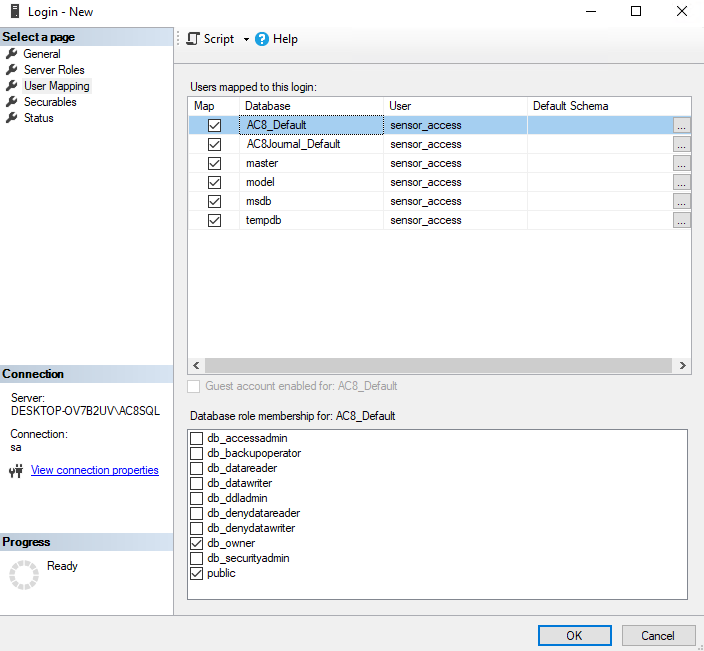
The custom SQL login should have:
sysadminserver role permissionsdb_ownerpermissions on:AC8_DefaultAC8Journal_Default
Repeat the same steps shown in the NT AUTHORITY permissions guide for the custom SQL login:
How to Verify NT AUTHORITY Permissions in SQL Server
 |  |  |
Note: Any custom SQL login must be created and tested before starting the GuardPoint 10 installation.
Step 5 – Configure SQL Network Settings
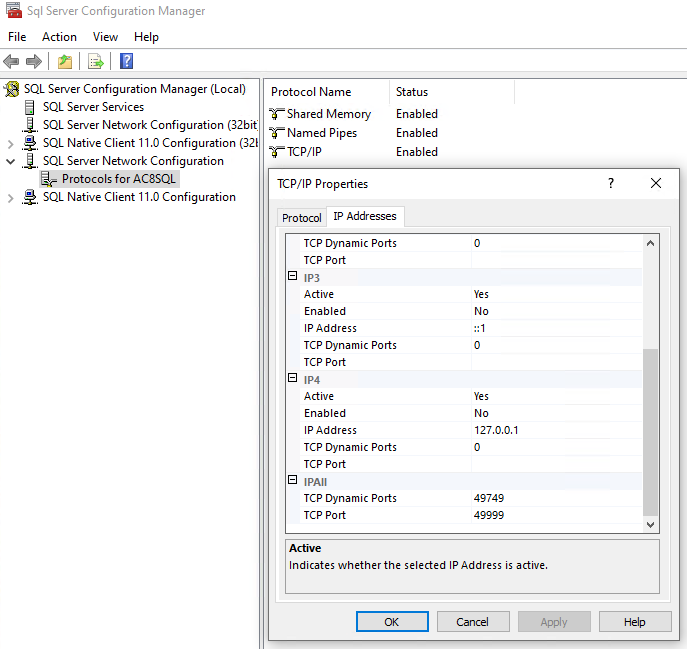
If GuardPoint 10 is connecting to SQL across the network, verify SQL network protocols are enabled.
Open SQL Server Configuration Manager
Navigate to:
SQL Server Network Configuration → Protocols for [AC8SQL or other Instance Name]
Ensure the following are enabled:
- TCP/IP
- Named Pipes [recommended to Enable]
Step 6 – Install GuardPoint 10
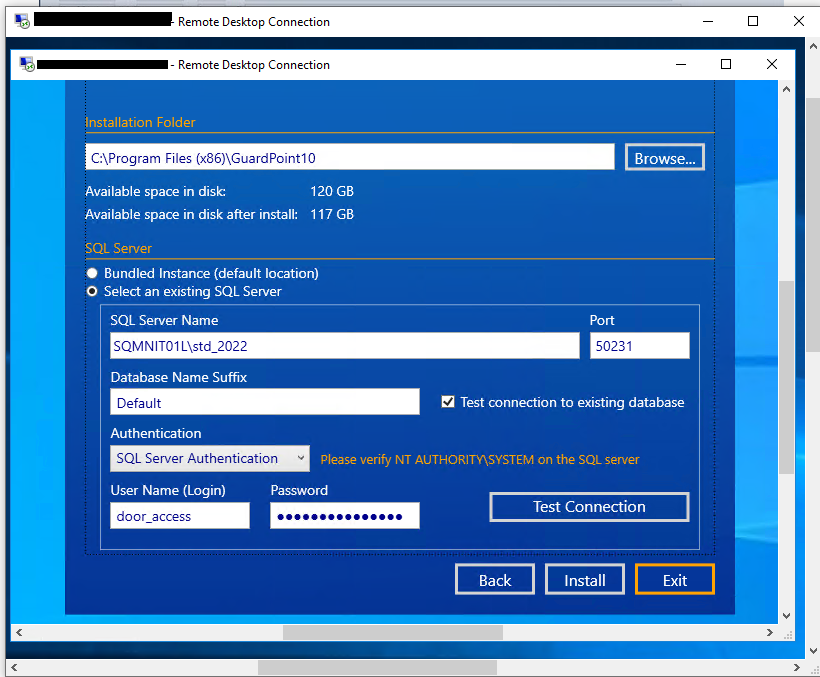
Launch the GuardPoint 10 installer.
Select:
- Advanced Installation
- Full Installation
- Select an existing SQL Server
Enter:
| Parameter | Example |
|---|---|
| SQL Server Name | SERVERNAME\INSTANCE NAME |
| SQL Port | 49999 |
| Authentication Type | SQL Authentication |
| Username | sa or custom SQL login |
| Password | Your SQL password |
Click:
- Test Connection
Once successful, continue the installation.
The GuardPoint 10 installation wizard supports connecting to an existing SQL Server instance.
Recommended SQL Configuration
For best results:
- Enable TCP/IP
- Enable Named Pipes
- Use static SQL ports where possible
- Allow SQL traffic through Windows Firewall
- Ensure SQL Browser service is running for named instances
Necessary GuardPoint 10
Ensure that local firewalls, antivirus software and network firewalls are not blocking the required ports below.
| Service | Protocol | Port |
|---|---|---|
| AcsServer HTTP | TCP | 7654 |
| AcsServer Net.TCP | TCP | 8765 |
| AcsServer → NM HTTP | TCP | 4567 |
| AcsServer → NM Net.TCP | TCP | 5678 |
| AcsServer → GUI HTTP | TCP | 4568 |
| AcsServer → GUI Net.TCP | TCP | 5679 |
| AcsWatchdog HTTP | TCP | 5656 |
| AcsWatchdog Net.TCP | TCP | 5757 |
| WatchdogClient HTTP | TCP | 6767 |
| WatchdogClient Net.TCP | TCP | 6868 |
| SQL Server | TCP | 1433 / 49999 |
| SQL Browser | UDP | 1434 |
| Tibbo Controllers | TCP | 1001 |
| Lantronix Controllers | TCP | 10001 |
| Tibbo DS Manager | TCP | 65534 |
| Lantronix DeviceInstaller | TCP | 9999 |
| Suprema Biometric Readers | TCP | 51211 |
| API Service (AcsApiService) | TCP | 10695 |
GuardPoint 10 default ports are documented throughout the installation and prerequisite documentation.
Additional Information
GuardPoint 10 supports installation against existing SQL Server environments using custom SQL parameters during advanced installation.
Default GuardPoint 10 installations normally create two SQL databases automatically during installation.
If you experience any issues during installation or SQL configuration, contact:
Was this article helpful?
That’s Great!
Thank you for your feedback
Sorry! We couldn't be helpful
Thank you for your feedback
Feedback sent
We appreciate your effort and will try to fix the article