GuardPoint10 Database Backup, Restore and Disaster Recovery Guidance
Important disclaimer
GuardPoint 10 stores important system information in SQL databases. This can include the system configuration, cardholders, badges, access groups, time zones, operators, event history and other site-specific data. Because of this, a suitable backup and disaster recovery process should be treated as an essential part of maintaining the system.
This guide is intended to provide general guidance only. The site maintainer, customer and/or IT provider is responsible for ensuring that a suitable backup and disaster recovery process is in place for their own environment. Sensor Access can provide guidance, but we cannot guarantee recovery where backups have not been created, stored correctly, tested, or made available at the time of failure.
A backup should not be considered complete simply because a backup file exists on the GuardPoint 10 server. If the server, hard drive, virtual machine, Windows installation or SQL installation fails, any backup stored only on the same machine may also be lost.
Before carrying out any SQL database backup, restore, migration, archiving, upgrade or recovery work, ensure that:
- A current backup exists.
- Both the main GuardPoint 10 database and the journal database are included.
- The backup files are stored somewhere safe.
- The correct backup file has been identified before restoring.
- The customer, maintainer and IT provider understand the impact of the work.
- The recovery procedure has been discussed and agreed.
Restoring a database can overwrite current system data and return the system to the point in time when the backup was taken. Any changes made after that backup may be lost.
If you are unsure about restoring a database, moving a GuardPoint 10 server, recovering a failed system or archiving large journals, contact support@sensoraccess.co.uk before proceeding.
Overview
This article covers the main options for backing up and maintaining a GuardPoint 10 SQL database.
The backup methods covered are:
| Method | Typical use |
|---|---|
| Manual backup from GuardPoint 10 | Quick backup before updates, changes, migrations or support work |
| Scheduled backup using AGR | Simple scheduled backup from within GuardPoint 10, where the GP10-AGR module is licensed |
| SQL Server Management Studio / SQL script | IT-managed SQL backup, often scheduled using Windows Task Scheduler |
| Disaster recovery planning | Planning what should happen if the GuardPoint 10 server, SQL database or PC/VM fails |
In all backup examples, both the main database and the journal database should be considered.
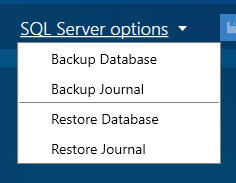
The GuardPoint 10 manual lists the SQL Server Options available from Setup > Options > System & SQL, including Backup Database, Backup Journal, Restore Database and Restore Journal. It also identifies the standard backup naming conventions for the main database and journal backup files.
GuardPoint 10 databases
A standard GuardPoint 10 installation normally uses two key databases.
| Database | Purpose |
|---|---|
Main database: AC8_Default | Stores the GuardPoint 10 system configuration, such as cardholders, badges, access groups, time zones, controllers, readers, operators and system settings. |
Journal database:AC8Journal_Default | Stores event history, such as access events, alarm events, audit events, communication events, general events and technical events. |
For a proper recovery position, both databases should be backed up.
Backing up only the main database may allow the system configuration to be restored, but it may not restore historical event data. Backing up only the journal may retain event history, but it will not restore the live system configuration.
Why the backup plan depends on the site
The level of backup and disaster recovery planning required depends on how important GuardPoint 10 is to the site.
- A small site with a few doors and rarely changing cardholders may only need a basic backup process. For example, the system may only be used occasionally to add a cardholder, check an event, or take a manual backup.
- A larger or more critical site may depend on GuardPoint 10 every day. The software may be used for live monitoring, cardholder management, alarm handling, roll call, visitor management, lift integration, API integration, Mobile Guard, VMS, reporting or other operational tasks. In this type of environment, the backup and recovery process should be much more formal.
If the GuardPoint 10 server is unavailable, controllers may continue to make local access decisions using the data already downloaded to them, depending on the controller, configuration and site design. However, the software will not be available for normal management until the server and database are recovered. The GuardPoint 10 architecture uses the server services to communicate with the SQL database, clients and controllers, while the network manager service downloads cardholder data to controllers and uploads events back to the server/GUI.
Typical functions that may be affected during a server failure include:
- Adding, deleting or changing cardholders.
- Viewing live events.
- Viewing event history.
- Alarm handling.
- Roll call.
- Visitor management.
- WebApp/API-connected systems.
- Mobile Guard or VMS connectivity.
- Lift, biometric, CCTV or third-party integrations.
- Reporting and audit checks.
Backup method 1: Manual backup from GuardPoint 10
Manual backup is useful before carrying out system changes, upgrades, support work, server maintenance or SQL work.
Steps
- Open GuardPoint 10 on the server.
- Go to Setup.
- Open Options.
- Open the System & SQL tab.
- Click SQL Server Options.
- Select Backup Database.
- Wait for the backup to complete.
- Repeat the process and select Backup Journal.
- Confirm that both backup files have been created.
- Copy the backup files to a safe location away from the GuardPoint 10 server.
The current system database is backed up using the naming convention AC8_<suffix><date of backup> <time of backup>.BAK, and the journal is backed up using AC8Journal_<suffix><date of backup> <time of backup>.BAK.
The default SQL backup folder is normally:
C:\Program Files\Microsoft SQL Server\MSSQL13.AC8SQL\MSSQL\Backup
This path may vary depending on the SQL version, instance name or installation method.

Backup method 2: Scheduled backup using AGR
GuardPoint 10 can also be configured to carry out scheduled backup actions using the AGR module.
This requires the GP10-AGR module. The GP10-AGR module enables additional Global Reflex actions including Scheduler, Database Backup, Email and Run external app.
This is a simple backup option where the customer owns the module and wants GuardPoint 10 to trigger regular backups without relying on an operator to manually create them.
Suggested use
Scheduled AGR backups may be suitable for:
- Weekly backup on smaller systems.
- Weekly or twice-monthly backup on medium systems.
- Daily backup on larger or more active systems.
- Additional backup before planned maintenance or upgrades.
The correct frequency depends on how often the system changes and how much data loss the customer can tolerate.
Example steps
- Open GuardPoint 10.
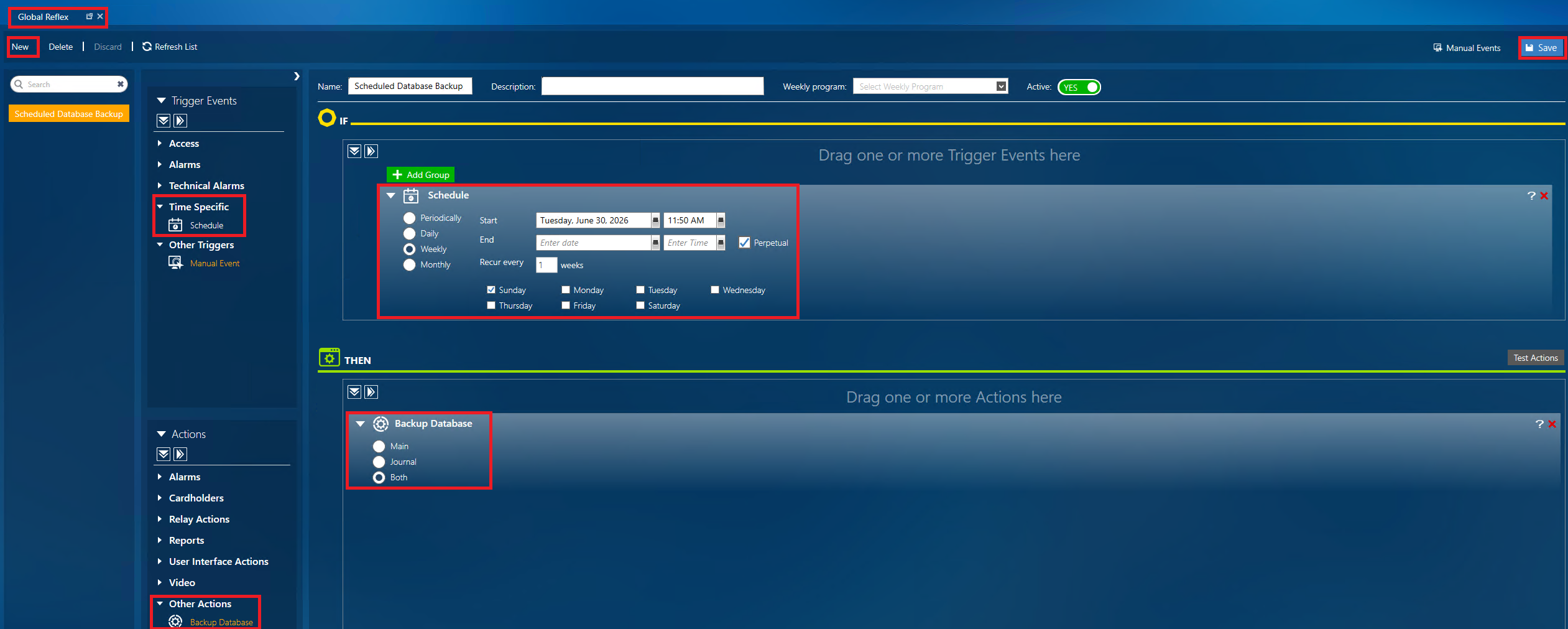
- Go to Global Reflex.
- Create a new Global Reflex.
- Add a Schedule trigger.
- Set the required schedule, for example weekly or daily.
- Add an action to Backup Database.
- Add a second action to Backup Journal.
- Save the Global Reflex.
- Test the action.
- Confirm that both backup files are created in the SQL backup folder.
- Confirm that the backup files are copied or collected by the customer’s wider backup process.
Important note
A scheduled backup is not a complete disaster recovery plan on its own.
The backup files should be copied to another secure location, such as a managed server backup, NAS, cloud backup, external backup system or other IT-approved location. The customer or IT provider should also periodically confirm that the backups can be restored.
Backup method 3: SQL Server Management Studio or PowerShell script
Some sites may prefer their IT department to manage SQL backups directly. This can be done using SQL Server Management Studio, SQL maintenance plans, third-party backup software, or a PowerShell script scheduled with Windows Task Scheduler.
This method is often preferred where the customer already has an IT-managed backup policy.
Any SQL backup method should include both:
AC8_Default
AC8Journal_Default
Example PowerShell backup script
The following is a simple example PowerShell script. It backs up the main GuardPoint 10 database and the journal database to a local backup folder.
This example does not copy to a NAS, USB drive or remote location. Those options can be added depending on the customer’s requirements.
Create this folder on the GuardPoint 10 server or VM:
C:\Scripts
Create this file:
C:\Scripts\Weekly-SQL-Backup.ps1
Example script:
$SqlInstance = "SERVERNAME\AC8SQL"
$SqlUser = "sa"
$SqlPassword = "PUT_SQL_PASSWORD_HERE"

$BackupRoot = "C:\SQLBackups"

$Databases = @(
    "AC8_Default",
    "AC8Journal_Default"
)

$DateStamp = Get-Date -Format "yyyyMMdd_HHmmss"
$LogFile = Join-Path $BackupRoot "SQLBackupLog-$DateStamp.txt"

# Create local backup folder
New-Item -ItemType Directory -Force -Path $BackupRoot | Out-Null

foreach ($Db in $Databases) {

    $BackupFile = Join-Path $BackupRoot "$Db-$DateStamp.bak"

    $Sql = @"
BACKUP DATABASE [$Db]
TO DISK = N'$BackupFile'
WITH INIT, CHECKSUM, STATS = 10;

RESTORE VERIFYONLY
FROM DISK = N'$BackupFile'
WITH CHECKSUM;
"@

    "Backing up $Db to $BackupFile" | Tee-Object -FilePath $LogFile -Append

    sqlcmd -S $SqlInstance -U $SqlUser -P $SqlPassword -b -Q $Sql 2>&1 | Tee-Object -FilePath $LogFile -Append

    if ($LASTEXITCODE -ne 0) {
        throw "Backup failed for database: $Db"
    }
}

# Keep local backups for 35 days
Get-ChildItem $BackupRoot -Filter "*.bak" | Where-Object {
    $_.LastWriteTime -lt (Get-Date).AddDays(-35)
} | Remove-Item -Force

"Backup completed successfully." | Tee-Object -FilePath $LogFile -Append

exit 0
Items to check before using the script
Before using this script, confirm:
- The SQL instance name is correct.
- The SQL username and password are correct.
- The database names are correct.
sqlcmdis installed and available.- The account running the scheduled task has permission to run the script.
- The backup folder exists or can be created.
- The backup files are being created successfully.
- The backup files are included in the customer’s wider backup process.
Example Windows Task Scheduler setup
- Open Task Scheduler.
- Create a new task.
- Set the task to run whether the user is logged on or not.
- Use a Windows account with suitable permissions.
- Add a trigger, for example weekly.
- Add an action:
- Program/script:
powershell.exe Add arguments:
-NoProfile -ExecutionPolicy Bypass -File "C:\Scripts\Weekly-SQL-Backup.ps1"Start in:
C:\Scripts
- Program/script:
- Save the task.
- Run the task manually once.
Confirm that
.bakfiles and a log file are created in:C:\SQLBackups
Other backup options are available depending on the site requirements. For example, some customers may prefer SQL maintenance plans, managed server backups, VM-level backups, backup agents, NAS copies, cloud backups, or a combination of these.
Journal archiving
Newer versions of GuardPoint 10 can automatically archive the journal. This is useful for managing the size of the live journal and splitting older event history into archived journals.
This should not be confused with a database backup.
Journal archiving is mainly a data-management and performance feature. It helps prevent the current journal from growing indefinitely and allows older event history to be moved into archive journals. It is not a replacement for backing up the SQL databases.
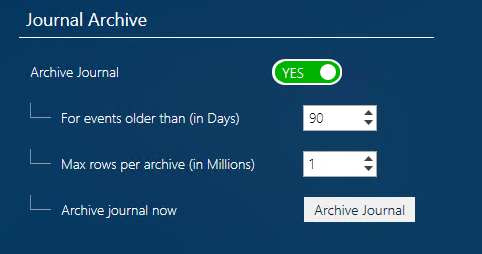
From Setup > Options > System & SQL, the Journal Archive section includes options such as:
| Option | Purpose |
|---|---|
| Archive Journal | Enables the archive process |
| For events older than (in Days) | Defines how old events must be before they are eligible for archive |
| Max rows per archive (in Millions) | Defines the approximate maximum number of rows per archive |
| Archive Journal now | Allows the archive process to be started manually when the criteria are met |
The GuardPoint 10 manual explains that journal archiving moves journal rows into an archive and is based on criteria such as event age and maximum rows per archive. The Archive Journal Now button archives the current journal without needing to restart the ACS service, but only when the archive criteria are satisfied.
Important note
Archived journals should still be included in the wider backup and disaster recovery plan. If the server or SQL storage is lost, archived journals may also be lost unless they are backed up.
Restoring a GuardPoint 10 database or journal
Restoring should be treated carefully and should normally be discussed with Sensor Access Support first.
Contact:
support@sensoraccess.co.uk
before restoring a live system, especially if:
- The server has failed.
- GuardPoint 10 will not open.
- The SQL database is suspected to be corrupt.
- The restore is being carried out to a new PC or VM.
- The system uses integrations.
- The system is large or business-critical.
- You are unsure which backup file should be restored.
The restore process described in this section refers to restoring via the GuardPoint 10 software, where the system is still accessible and the built-in restore options are available.
In some failure scenarios, GuardPoint 10 may not open or the server may be in a condition where the built-in restore process cannot be used. In these cases, a more advanced restore may need to be carried out directly through SQL Server Management Studio. This should not be attempted unless you are familiar with SQL Server backup and restore procedures. We strongly recommend contacting Sensor Access Support before carrying out a direct SQL restore, as restoring the wrong database, restoring to the wrong SQL instance, or overwriting the wrong data can cause further system issues.
General restore guidance
- Confirm the correct GuardPoint 10 server.
- Confirm the correct SQL instance.
- Confirm the correct database backup file.
- Confirm the correct journal backup file, if event history is also being restored.
- Ensure users are aware that GuardPoint 10 may close or restart during the restore.
- Restore the main database.
- Restore the journal database if required.
- Monitor GuardPoint 10 services using Watchdog.
- Relaunch GuardPoint 10 once services are running.
- Check cardholders, access groups, event history and controller communications.
- Initialise controllers if required.
The GuardPoint 10 restore process will automatically close or stop open GuardPoint 10 instances and restart the GuardPoint 10 services. We also recommends controller initialisation after restoring a database to resolve residual data issues that may remain in controller memory.
Important restore warning
Restoring a backup returns the system to the point in time when that backup was taken.
For example, if a backup from Monday is restored on Friday, cardholders, badges, access changes, operator changes, options and other data added between Monday and Friday will no longer exist after the restore. Always make sure the correct backup file has been selected before proceeding.
Restoring to a new PC or server
Restoring GuardPoint 10 to a new PC, server or VM may involve more than simply restoring SQL backup files.
The exact process depends on the site, installation type, SQL setup, licence, server name, IP addressing, controllers, workstations and integrations.
Items that may need to be considered include:
- GuardPoint 10 version.
- SQL Server version and instance name.
- Main and journal database backups.
- GuardPoint 10 licence.
- Windows server name and IP address.
- Workstation/client connectivity.
- Controller communication.
- Firewall rules and ports.
- Antivirus exclusions.
- API, WebApp, VMS or Mobile Guard connections.
- Lift, biometric, CCTV or other third-party integrations.
- SSL certificates or secure tunnels where applicable.
- Scheduled tasks or automated backup jobs.
- Customer IT policies.
For this reason, restoring to a new machine should normally be planned with Sensor Access Support and the customer’s IT provider.
Recommended backup frequency
The correct backup frequency depends on how important GuardPoint 10 is to the customer and how often the system changes.
| Site type | Example system profile | Suggested backup frequency |
|---|---|---|
| Small site | Few doors, few cardholders, infrequent changes | Weekly or before changes |
| Medium site | Regular cardholder changes, normal reporting use | Weekly or every 2 weeks |
| Large site | Many doors/readers, frequent changes, active monitoring | Daily or as agreed with IT |
| Critical site | Heavy operational reliance, integrations, roll call, visitor management, security monitoring | Daily minimum, with a formal disaster recovery plan |
These are general examples only. The customer, maintainer and IT provider should agree a suitable backup frequency based on the acceptable level of data loss and downtime.
Disaster recovery planning
A backup is only one part of disaster recovery.
A disaster recovery plan should define what happens if the GuardPoint 10 server, SQL database, Windows installation, VM, hard drive or network environment fails.
The aim is to agree the recovery expectations before there is an emergency.
Questions to agree
The customer, maintainer and IT provider should consider:
- How long can the site operate without the GuardPoint 10 software?
- How quickly does the system need to be restored?
- How much data loss is acceptable?
- Who is responsible for checking that backups are running?
- Who is responsible for storing backups away from the server?
- Who has the Windows, SQL and GuardPoint 10 credentials needed for recovery?
- Who is authorised to make recovery decisions?
- What happens if the failure occurs out of hours or at the weekend?
- Are there integrations that also need to be recovered?
- Are VM snapshots being used?
- Is there a standby PC or server available?
- Has a restore test ever been carried out?
- Are the backups included in the customer’s IT backup policy?
- Is the backup location documented?
Recovery time and data loss
Two useful terms are:
| Term | Meaning |
|---|---|
| Recovery Time Objective | How quickly the customer needs GuardPoint 10 back online |
| Recovery Point Objective | How much data the customer can afford to lose |
For example, a site that can tolerate a one-week-old backup has a very different requirement from a site that needs to recover with less than one day of data loss.
Higher resilience options
For more critical systems, the customer may wish to discuss additional options with Sensor Access and their IT provider.
Possible options include:
- Regular scheduled SQL backups.
- Off-server backup storage.
- VM-level backups.
- Tested restore procedure.
- A fully licensed standby PC or server.
- A pre-prepared recovery VM.
- Server snapshots.
- SQL maintenance plans.
- Failover or cluster options.
- A documented recovery procedure.
- Agreed support escalation process.
The correct solution depends on the customer’s operational requirements, IT infrastructure and budget. For larger or business-critical systems, disaster recovery should be discussed and agreed before the system is relied upon in production.
Summary
A suitable GuardPoint 10 backup plan should include both the main GuardPoint 10 database and the journal database. The main database contains the system configuration, while the journal contains the event history. For a useful recovery position, both should be backed up regularly and stored somewhere safe, away from the GuardPoint 10 server.
It is also recommended to include a copy of the following folder in the wider backup plan:
C:\ProgramData\ACS
This folder may contain useful GuardPoint 10 system files, logs and licence-related information. Having a copy of this folder can significantly help when investigating what may have caused a system failure, reviewing historical logs, or assisting with potential licence recovery or transfer.
This folder backup should not replace the SQL database and journal backups, but it is a useful additional safeguard when recovering or investigating a failed system.
In summary:
- Back up the main GuardPoint 10 database.
- Back up the GuardPoint 10 journal database.
- Include
C:\ProgramData\ACSin the wider server backup. - Store backups away from the GuardPoint 10 server.
- Test the restore process periodically.
- Agree the disaster recovery plan before a failure occurs.
- Contact support@sensoraccess.co.uk before carrying out advanced restore work.
Was this article helpful?
That’s Great!
Thank you for your feedback
Sorry! We couldn't be helpful
Thank you for your feedback
Feedback sent
We appreciate your effort and will try to fix the article