Troubleshooting :
Locating the Controller IP
If you are unable to locate the IP of a particular controller, try following the below steps:
- Identify the TCP/IP module
First, check whether the controller is fitted with a Lantronix or Tibbo network module. This determines which discovery software you need to use:
Lantronix Device Installer
or
Tibbo DS Manager
The label on the network module should help you identify which type is installed. - Check firewall and antivirus restrictions
Firewall or antivirus software can sometimes block the broadcast traffic used by Lantronix Device Installer or Tibbo DS Manager. Try temporarily disabling the firewall or antivirus software while searching for the controller. - Add a manual IP range
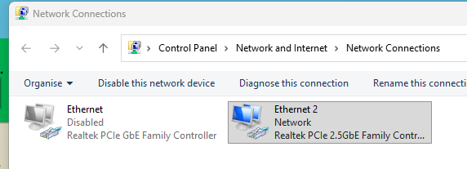
When connecting the controller directly to your laptop via CAT cable, it may help to give your ethernet adapter a range.
This will prevent the adapter from getting stuck on obtaining a IP address automatically and may help discover your controller.Search Windows for Network Connections and select the relevant network adapter.
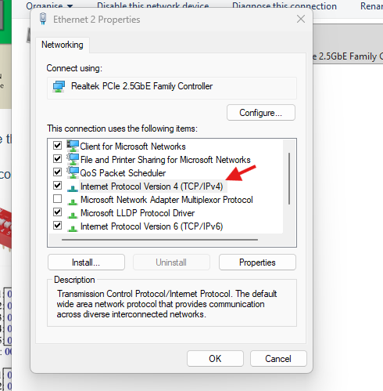
- Right-click the network adapter and select Properties.
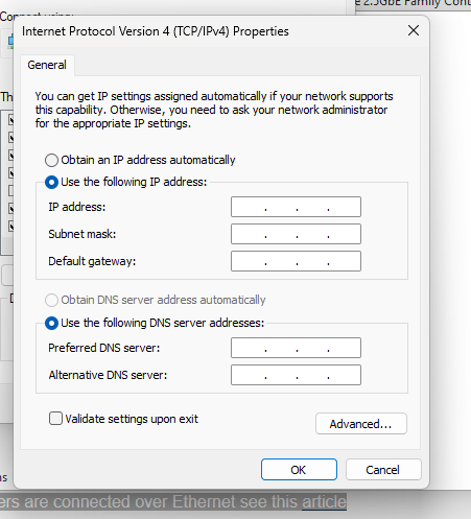
- Double-click Internet Protocol Version 4 (TCP/IPv4).
- Add an IP address within the required range.
- Select the correct network interface
The discovery software may be searching through the wrong network connection, particularly if the PC has both Ethernet and Wi-Fi enabled.
Lantronix: Tools -> Options: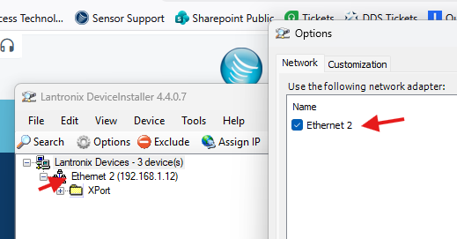
Tibbo: File -> Network Interface: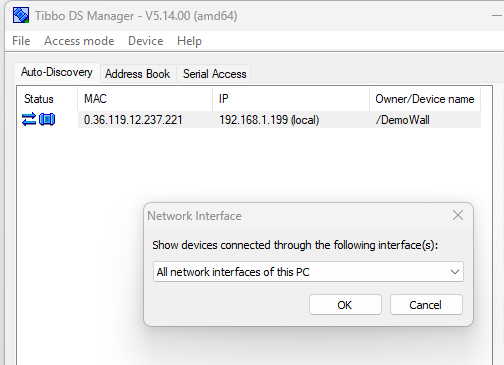
5. Check whether the controller already has a known IP address
If the controller was previously configured, its IP address may already be recorded in GuardPoint10
If a possible IP address is found, try to ping it:
ping [controller IP address]
A successful ping confirms that the device is reachable, although it does not necessarily confirm that the controller communication settings are correct.
6. If the controller is found but will not communicate
Locating the IP address does not confirm that the controller’s serial communication settings are correct.
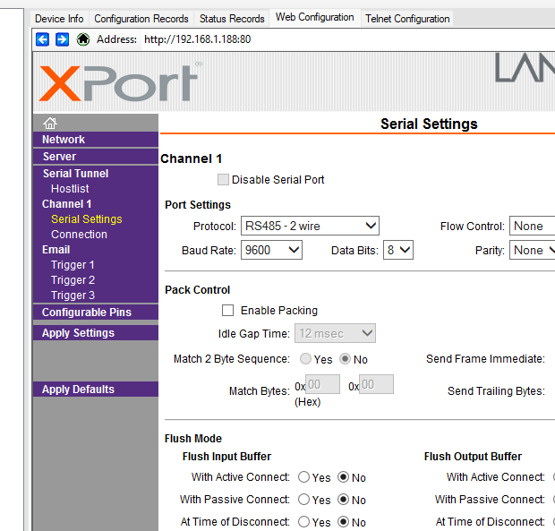
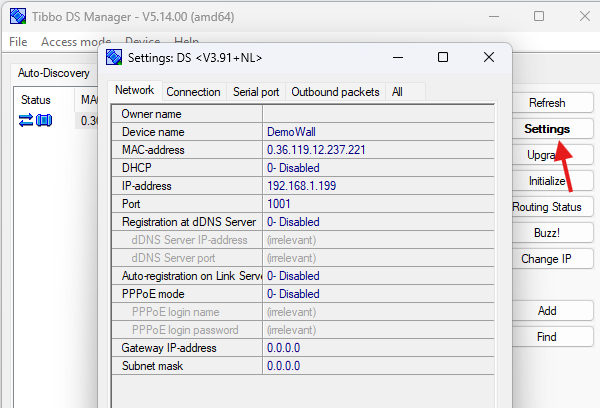
Check that the TCP/IP module and controller are configured with matching settings, including:
- Protocol: RS232
- Flow control: None
- Baud rate: 9600
- Data bits: 8
- Parity: None
- Stop bits: 1
- Local port: 10001 (Lantronix) / 1001 (Tibbo)
To find these settings in the Lantronix Device Installer, select Web Configuration followed by the green arrow:

For Tibbo, you just need to click on Settings on the right hand side
7. Power-cycle the controller and network module
If the controller is still not detected:
- Confirm that it is safe to restart the controller.
- Remove power from the controller.
- Wait approximately 10 seconds.
- Restore power.
- Allow the controller and TCP/IP module to restart fully.
- Run the network search again.
Was this article helpful?
That’s Great!
Thank you for your feedback
Sorry! We couldn't be helpful
Thank you for your feedback
Feedback sent
We appreciate your effort and will try to fix the article