Updating Controller Firmware - 2026
If you are updating controllers to be used on GP10 that have been used on GPP they may require a firmware update. Controllers with firmware dated before 2018 will need to be updated to work on GP10. All controllers are compatible as long as their firmware is upgraded.
⚠️ WARNING: Flashing the wrong file may permanently damage your controller, and is not covered under warranty. If you are unsure which controller you have or which file you need, please contact us at support@sensoraccess.co.uk before you proceed.
You will need:
- A USB-485 adaptor to update the firmware, as well as the driver (Product code: USB/485-SEN)
- The Flash 2000 tool.
- The correct HEX firmware file for your controller type.
Procedure:
- Ensure the GuardPoint Pro application or GuardPoint 10 services are not running, and connect the controller to the computer with the USB-485 adaptor.
- Open Device Manager and look for USB Serial Port under Ports. If this doesn't appear, install the driver and try again. Make note of the COM port, COM3 in this example.

- Open Flash 2000, and change the COM port as above. Also ensure the other settings match the screenshot below.

- Tick the box for your controller address, as set by the dip switches. In this example the address is 0.

- Click Flash Info and you the program will start trying to communicate with the controller. If successful, you will get a screen like below with information in the fields respective to the controller address, in this example address 0.
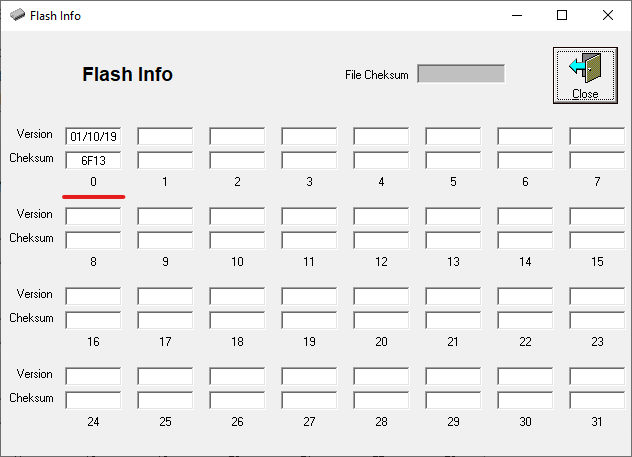
- The Version field should show the firmware date. If it shows something else, such as 00/AB/CD, please contact us for further instructions.
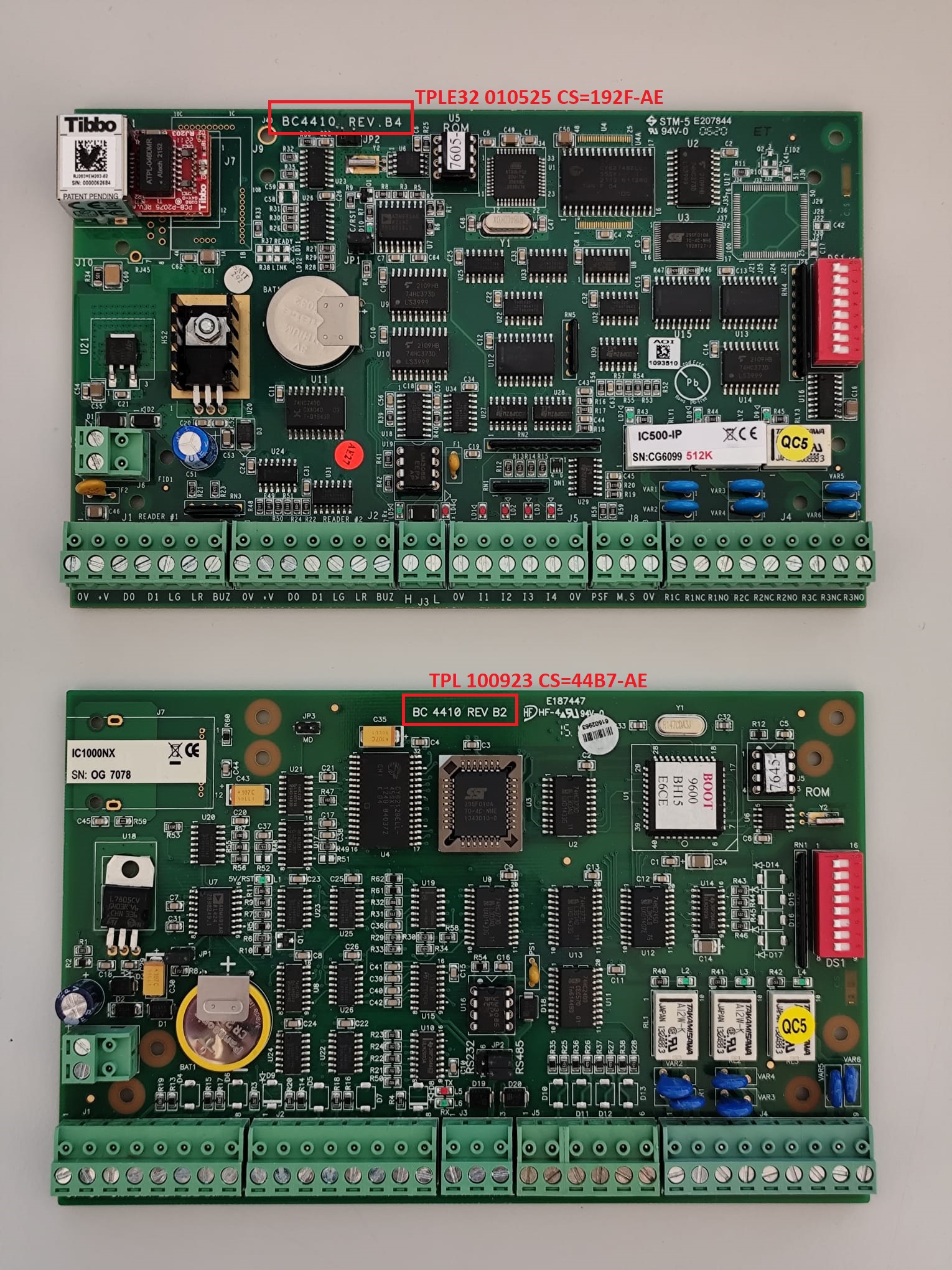
ℹ️ Please be aware that the Speed setting will automatically cycle through the options if it cannot communicate with the controller. You will need to change it back to 9600 before trying again.- Before continuing, confirm which firmware you will need. First check whether your controllers are REV B4 or REV B2. See the attached photo for where to locate this:
| Controller | Firmware Compatibility |
|---|---|
| IC500 B4 | TPLE32 010525 CS=192F-AE |
| IC500IP B4 | TPLE32 010525 CS=192F-AE |
| IC500NX B4 | TPLE32 010525 CS=192F-AE |
| IC500NXIP B4 | TPLE32 010525 CS=192F-AE |
| IC1000 B4 | TPLE32 010525 CS=192F-AE |
| IC1000IP B4 | TPLE32 010525 CS=192F-AE |
| IC1000NX B4 | TPLE32 010525 CS=192F-AE |
| IC1000NXIP B4 | TPLE32 010525 CS=192F-AE |
| IC2001 | TPLE32 010525 CS=192F-AE |
| IC2001IP | TPLE32 010525 CS=192F-AE |
| IC2001M2 | TPLE32 010525 CS=192F-AE |
| IC2001M2IP | TPLE32 010525 CS=192F-AE |
| IC4001 | TPLE32 010525 CS=192F-AE |
| IC4001IP | TPLE32 010525 CS=192F-AE |
| IC4001M2 | TPLE32 010525 CS=192F-AE |
| IC4001M2IP | TPLE32 010525 CS=192F-AE |
| IC500 B2 | TPL 100923 CS=44B7-AE |
| IC500NX B2 | TPL 100923 CS=44B7-AE |
| IC500NXIP B2 | TPL 100923 CS=44B7-AE |
| IC1000 B2 | TPL 100923 CS=44B7-AE |
| IC1000NX B2 | TPL 100923 CS=44B7-AE |
| IC1000NXIP B2 | TPL 100923 CS=44B7-AE |
| IC2000 | TPL 100923 CS=44B7-AE |
| IC4000 | TPL 100923 CS=44B7-AE |
ℹ️ Firmware files are available to download at the bottom of this article
- Close the Flash Info window, click Browse and open the relevant HEX firmware file (as per above table).

- Press "Download (Serial)" to start downloading the new firmware to the controller(s). In this option the program verifies each data packet immediately after it was sent. In case you have selected more than one controller, the controllers will be updated one after the other. Download time may take a few minutes per controller.
If you have pressed "Download (Parallel)" instead, the firmware is downloaded without verifying the packets and with a parallel (simultaneous) update for all the controllers on the bus. The download time is lower but this is not as secure.
⚠️ WARNING: DO NOT UNPLUG THE CONTROLLER DURING THE DOWNLOAD PROCESS.
If the programming process is interrupted, the controller will be permanently damaged. We also recommend you avoid using the PC during this process.

- After the programming process is complete, the Flash Info will be shown with the updated firmware date.

- The firmware update is now complete. Close Flash 2000 and restart GuardPoint Pro/10. Make sure you initialise the controller after you reconnect it to the server.
⚠️ WARNING: Flashing the wrong file may permanently damage your controller, and is not covered under warranty. If you are unsure which controller you have or which file you need, please contact us at support@sensoraccess.co.uk before you proceed.
We will not be held responsible for any controllers damaged during the firmware update process.
Was this article helpful?
That’s Great!
Thank you for your feedback
Sorry! We couldn't be helpful
Thank you for your feedback
Feedback sent
We appreciate your effort and will try to fix the article