GuardPoint10: How to Verify NT AUTHORITY Permissions in SQL Server
In some cases, GuardPoint10 may require the NT AUTHORITY login to have the correct SQL permissions to allow the services to access the database properly.
This guide explains how to verify and assign the correct permissions using SQL Server Management Studio (SSMS).
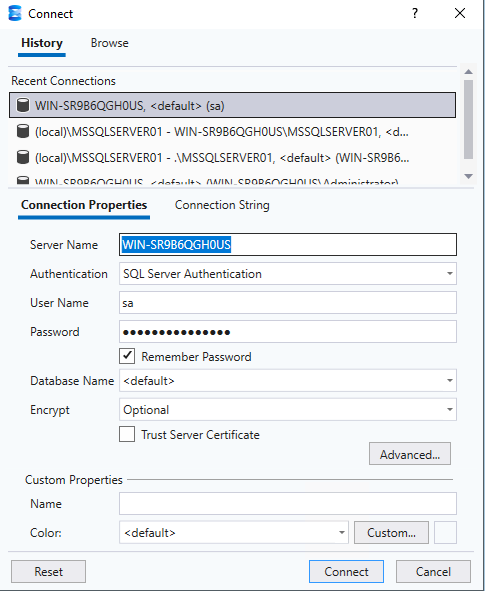
1. Connect to the SQL Server
Open SQL Server Management Studio (SSMS).
Connect to the SQL Server instance that hosts your GuardPoint10 database.
2. Locate the NT AUTHORITY Login
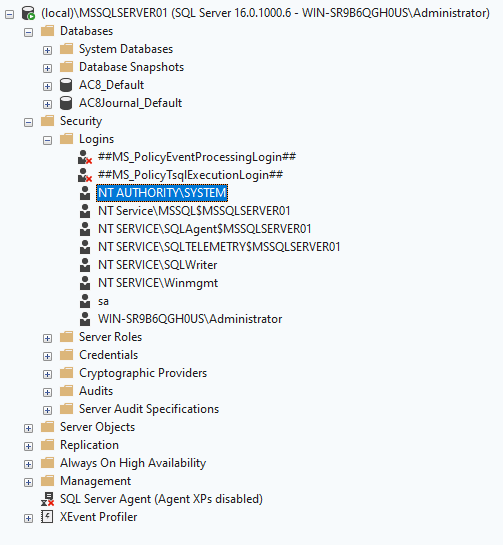
In the Object Explorer, expand:
Security
   └ Logins
Locate NT AUTHORITY in the list of logins.
Double-click the NT AUTHORITY login to open its properties.
3. Assign the Required Server Role
Go to the Server Roles tab.
Tick the following role:
✔ sysadmin
This grants the required server-level permissions for the GuardPoint10 services to interact with SQL.
4. Configure Database Permissions
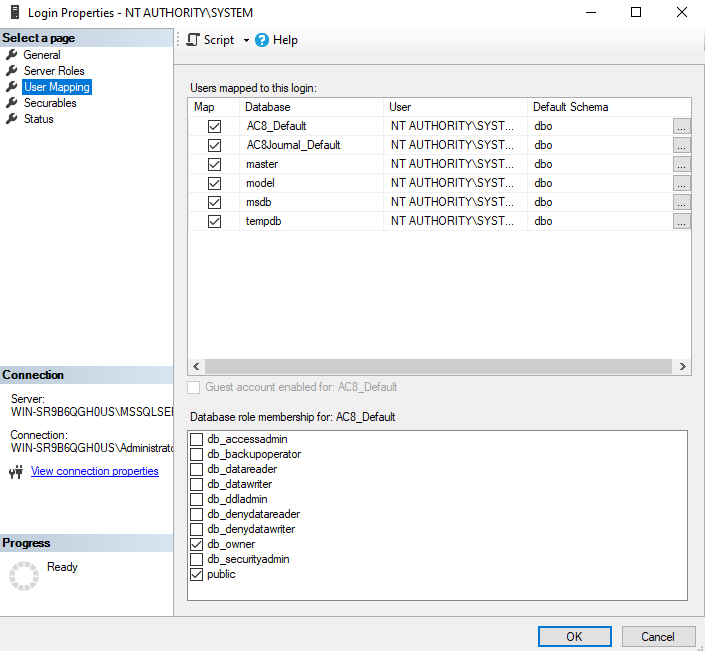
Navigate to the User Mapping tab.
Select the GuardPoint10 databases:
✔ GuardPoint10 database
✔ Journal database
In the Database role membership section, select:
✔ db_owner
This ensures the services have full access to the GuardPoint10 databases.
5. Apply the Changes
Click OK to save the configuration.
The NT AUTHORITY login is now correctly configured.
Was this article helpful?
That’s Great!
Thank you for your feedback
Sorry! We couldn't be helpful
Thank you for your feedback
Feedback sent
We appreciate your effort and will try to fix the article