GuardPoint10 Fire Roll Call Tool
Introduction
The Fire Roll Call tool automatically prints a list of everyone on site when your fire alarm goes off. It works with a GuardPoint10 Global Reflex, so the report prints straight away with nobody needing to be at the PC.
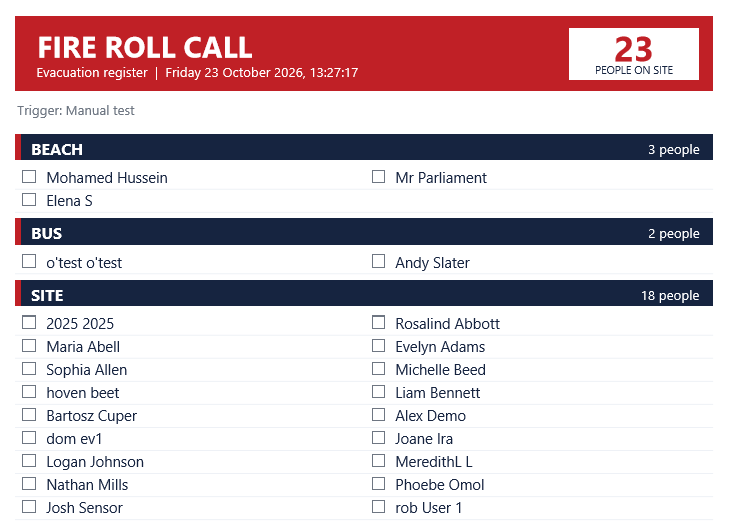
The report shows the date and time, the number of people on site, and each person's first and last name grouped by area, with a tick box next to each name for your fire marshal.
The tool reads the GuardPoint10 database directly. No internet connection is needed. The tool runs entirely on your GuardPoint10 PC.
1. Download the tool
Step 1 - Download FireRollCall.exe from the attachment at the bottom of this article.
Step 2 - Save it in a permanent folder on the GuardPoint10 PC, for example C:\FireRollCall.
2. Create the Global Reflex in GuardPoint10
Step 1 - In GuardPoint10, go to Setup > Global Reflex.
Step 2 - Add the alarm event for your fire alarm into the IF section
Step 3 - From Other Actions, drag 'Run an external application' into the THEN section
Step 4 - Add the FireRollCall.exe as shown below:
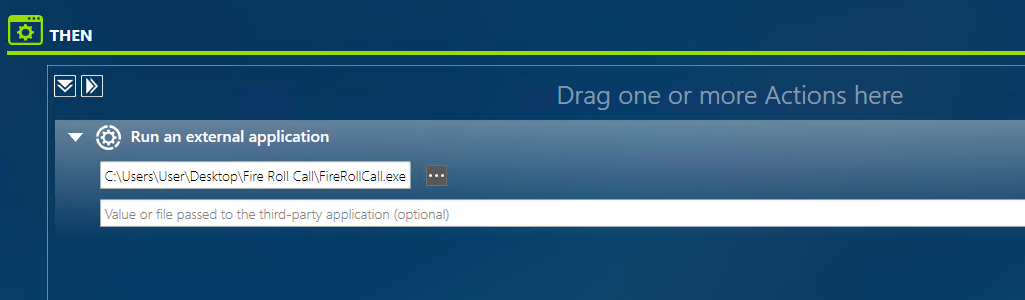
You can click 'Test Actions' to check everything works.
When the fire alarm input goes into alarm, the roll call now prints automatically.
3. First run: complete the setup box
The first time the reflex runs, or you double-click FireRollCall.exe, the setup box pops up on top of GuardPoint10:
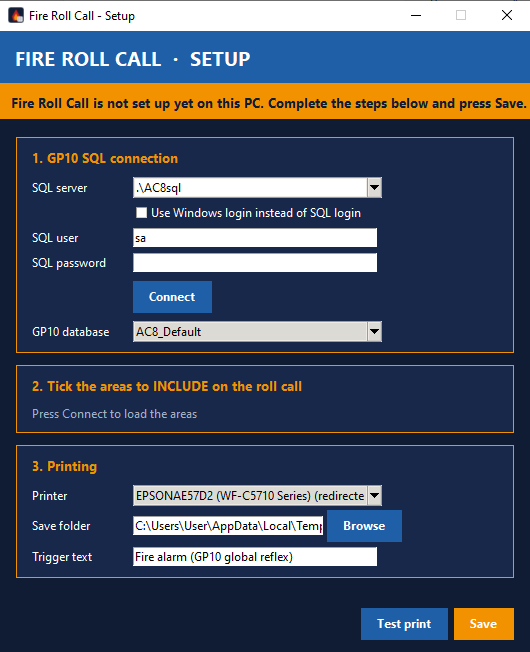
Step 1 - GP10 SQL connection: the SQL server, SQL user and database are filled in for you from GuardPoint10's settings. Enter the SQL password and click Connect.
Step 2 - Choose your GuardPoint10 database from the GP10 database list.
Step 3 - Tick the areas to INCLUDE on the roll call: tick the areas whose people should appear on the report, for example your on site areas. Leave areas such as Offsite unticked. Any new areas added in GuardPoint10 later are included automatically.
Step 4 - Printing: choose the Printer, the Save folder and the Trigger text (the text shown at the top of the report).
Step 5 - Click Test print and check the report prints correctly.
Step 6 - Click Save.
Your settings are saved in FireRollCall.ini next to the exe. The password is encrypted and only works on this PC, so setup must be done on each PC the tool is installed on.
From then on the roll call prints automatically whenever the reflex is triggered.
4. Changing the settings
To change the settings later, run FireRollCall.exe /setup (for example from the Windows Run box: C:\FireRollCall\FireRollCall.exe /setup).
5. Troubleshooting
If the roll call cannot be produced, a FIRE ROLL CALL FAILED page is printed telling staff to use the manual evacuation procedure.
The reason is written to FireRollCall.log next to the exe.
If the printer is Microsoft Print to PDF, the report is saved as a PDF in the chosen save folder.
If you need help, please raise a ticket with our support team.
Was this article helpful?
That’s Great!
Thank you for your feedback
Sorry! We couldn't be helpful
Thank you for your feedback
Feedback sent
We appreciate your effort and will try to fix the article