Programming DESFire Credentials with the DesfirePersoTool
Access credentials should be as secure as possible. Traditional proximity cards and older MIFARE Classic cards can sometimes be copied or cloned using readily available equipment. DESFire credentials provide stronger protection by storing the card number within an encrypted, secure application that can only be read using the correct key.
Download here: DesfirePersoTool v2.zip
Overview
The DesfirePersoTool is a Windows application used to encode a secure Sensor Access application onto compatible DESFire credentials.
The tool can be supplied and configured in several ways:
- Using the standard Sensor Access encryption key.
- Using a customer-specific encryption key created in consultation with Sensor Access.
- Supplied for the customer to configure and manage independently, without disclosing their encryption key to Sensor Access.
Sensor Access can also provide a card configuration service, allowing DESFire cards to be securely programmed as part of a relevant card or reader order.
All readers within the Sensor Access DF Series can be configured to read the secure DESFire application.
Important: The configuration files and password supplied with the tool contain sensitive security information. They should be stored securely and only made available to authorised personnel.
Required Equipment and Files
Before beginning, ensure that you have:
- A Windows computer.
- The supplied DesfirePersoTool folder.
- A compatible desktop NFC reader.
- Sensor Access product code ACR1252U.
- Compatible DESFire cards, or a smartphone running the Mobile Key application.
- The site configuration and password supplied by Sensor Access.
For pricing and availability of the ACR1252U reader, contact:
Folder Contents
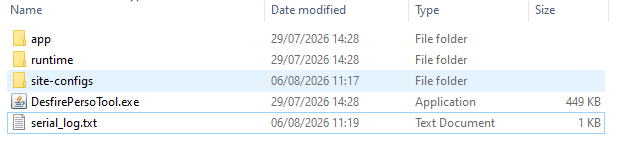
Download the supplied package and extract the complete folder before running the application.
The folder contains the following important items:
site-configs
This folder contains the encryption configuration used when programming credentials.
Depending on the customer’s requirements, it may contain:
- The standard Sensor Access key configuration.
- A customer-specific site configuration.
- A configuration managed independently by the customer.
Do not rename, move or modify files inside this folder unless instructed by Sensor Access.
Connecting the Desktop Reader
- Connect the ACR1252U desktop reader to the Windows computer.
- Allow Windows to install the device automatically.
- Confirm that the reader is connected before opening the DesfirePersoTool.
- Place the DESFire card on the reader when instructed.
For a Mobile Key credential, open the credential within the Mobile Key application and hold the phone against the desktop reader’s NFC area.
Opening the DesfirePersoTool
- Open the extracted application folder.
Run:
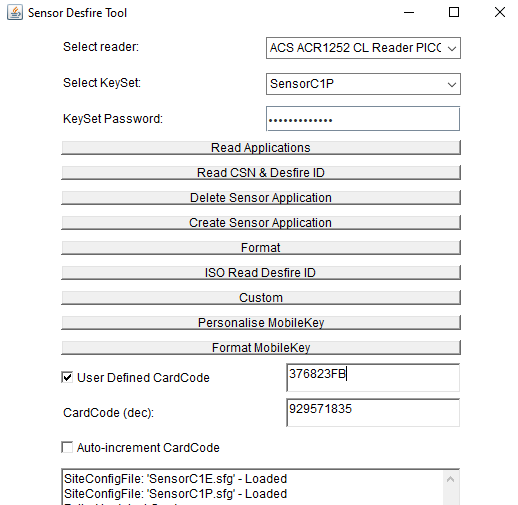
DesfirePersoTool.exe- In the Reader dropdown, select the connected ACR1252U reader.
- In the Keyset dropdown, select the required site configuration from the
site-configsfolder. - Enter the password provided to you by Sensor Access or your custom KeySet password
- Confirm or unlock the configuration as required.
The application is now ready to program credentials.
Programming a DESFire Card
- Place a compatible DESFire card on the ACR1252U reader.
- Tick User Defined Card Code.
- Enter the card number that you want to assign.
The card number should match the badge number that will be entered into the access control system.
- Check that the correct reader and site configuration are selected.
Click:
Create Sensor Application
- Keep the card on the reader until the application confirms that the process has completed.
Do not remove the card while it is being programmed.
Verifying the Credential
After programming has completed:
- Leave the credential on the reader.
Click:
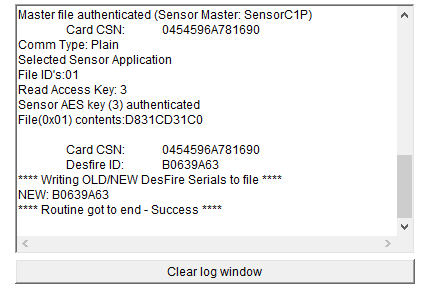
Read CSN and Desfire ID
- Confirm that the application successfully displays the credential information.
- Check that the returned DESFire ID matches the card number entered during programming.
The credential can now be added to the appropriate cardholder within the access control software.
Using Mobile Key as a DESFire Credential
Mobile Key is a free virtual access credential that stores a secure access card on a compatible smartphone. The phone communicates with compatible Sensor Access readers using NFC, allowing it to be presented in the same way as a physical DESFire card.
The application does not require Bluetooth to remain enabled and is fully compatible with the Sensor Access DF Series reader range. There is also support for Android and iOS devices, although the iPhone version is currently limited to users within the European Economic Area.
Android download
Download Mobile Key from Google Play
Apple download
Download Mobile Key from Apple Store
Programming Mobile Key
- Install and open Mobile Key on the smartphone.
- Display or activate the virtual credential within the application.
- Hold the phone against the NFC area of the ACR1252U.
- In the DesfirePersoTool, tick User Defined Card Code.
- Enter the required card number.
- Click Create Sensor Application.
- Keep the phone against the reader until programming is complete.
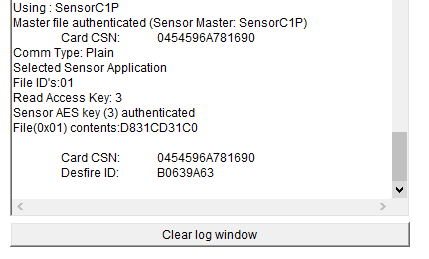
- Click Read CSN and Desfire ID to verify the credential.
The phone may need to be repositioned slightly to align its internal NFC antenna with the desktop reader.
Click here for a Quick Start Guide on MobileKey
Troubleshooting
The desktop reader is not listed
- Disconnect and reconnect the ACR1252U.
- Close and reopen the DesfirePersoTool.
- Try another USB port.
- Check Windows Device Manager to confirm that the reader has been detected.
- Close any other application that may already be using the reader.
The site configuration does not open
- Confirm that the correct keyset has been selected.
- Re-enter the password from
Password.txt. - Check that the
site-configsfolder remains inside the original application directory. - Confirm that no files have been renamed or removed.
The card cannot be programmed
- Confirm that the credential is a supported DESFire card.
- Make sure the card remains flat against the reader.
- Check that the card has not already been configured using an incompatible application or key.
- Try another card to determine whether the problem is card-specific.
The phone is not detected
- Confirm that NFC is enabled.
- Open the Mobile Key credential before presenting the phone.
- Remove thick or metallic phone cases.
- Slowly reposition the phone over the reader to locate its NFC antenna.
- Confirm that no other NFC application is currently active.
Verification returns an unexpected number
Do not issue the credential. Recheck the number entered under User Defined Card Code, confirm that the correct site configuration is selected, and program the credential again if appropriate.
Sensor Access Programming Service
Sensor Access can program compatible DESFire cards as part of a relevant order. This can reduce installation time and ensure that cards are supplied using the correct secure configuration.
For information about:
- DESFire card programming.
- Customer-specific encryption keys.
- The DesfirePersoTool.
- DF Series readers.
- The ACR1252U desktop reader.
Contact support@sensoraccess.co.uk
Was this article helpful?
That’s Great!
Thank you for your feedback
Sorry! We couldn't be helpful
Thank you for your feedback
Feedback sent
We appreciate your effort and will try to fix the article