GuardPoint10 Access Monitor Guide

NOTE: The latest version of GP10 is required to use the full API commands -
GuardPoint10.1.160.21.exe
TABLE OF CONTENTS
- 1. Access Monitoring
- 2. Connection to GuardPoint 10
- 3. Reader Selection
- 4. Alarm Management
- 5. Actions (Global Reflex Manual Events)
- 6. Area Monitoring
- 7. Advanced Parameters
- 8. Using the Number field and PINs to restrict permissions
- 9. Input Already Triggered
1. Access Monitoring
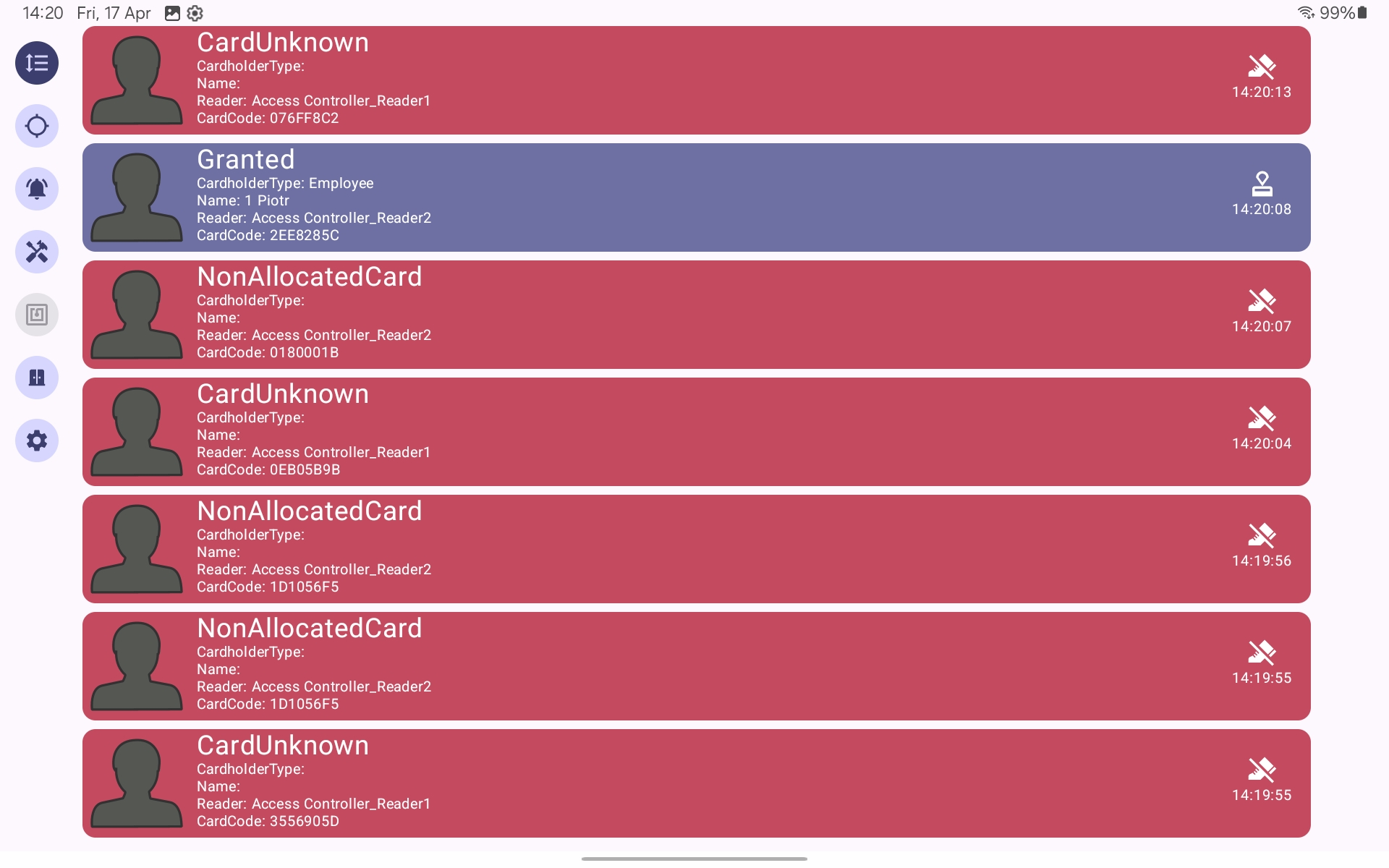
The application is designed to provide real-time monitoring of access control events generated within GuardPoint 10.
It displays access transactions including granted access, denied access, and unknown badge events. These events originate from field controllers and are processed through the GuardPoint 10 services before being exposed to the application via the API layer.
2. Connection to GuardPoint 10
The application connects to a GuardPoint 10 instance via the API service.
The connection is typically established over a local network. External connectivity requires secure tunnelling or port forwarding, which should be configured by the site IT department.
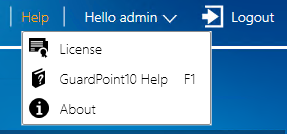
The GuardPoint 10 API module (GP10-API) must be enabled on the system licence to allow communication with external applications.
The API is a RESTful service using HTTP requests and supports real-time event streaming.
Check your licence details.
Required Configuration
Within GuardPoint 10, the following settings must be configured:
Navigate to:
Setup → Options → General
Enable:
'Pass events to API'
This ensures that system events are forwarded to the API service for external consumption.

User Configuration
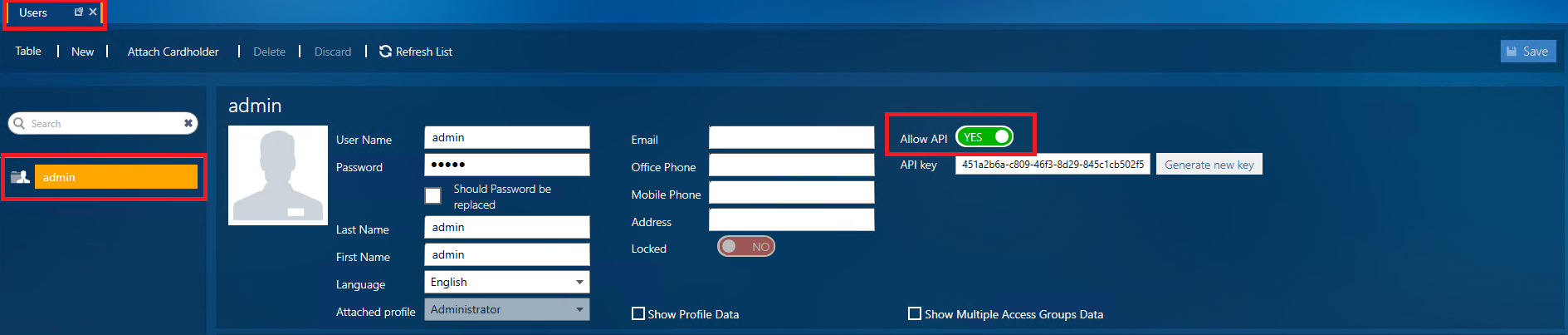
Each user logging into the application must have API access enabled.
Navigate to:
Management → Users
For each user:
Allow API must be set to Yes
A valid API key must be configured
Authentication is handled via GuardPoint 10 user credentials and API authorization.
Connection Details
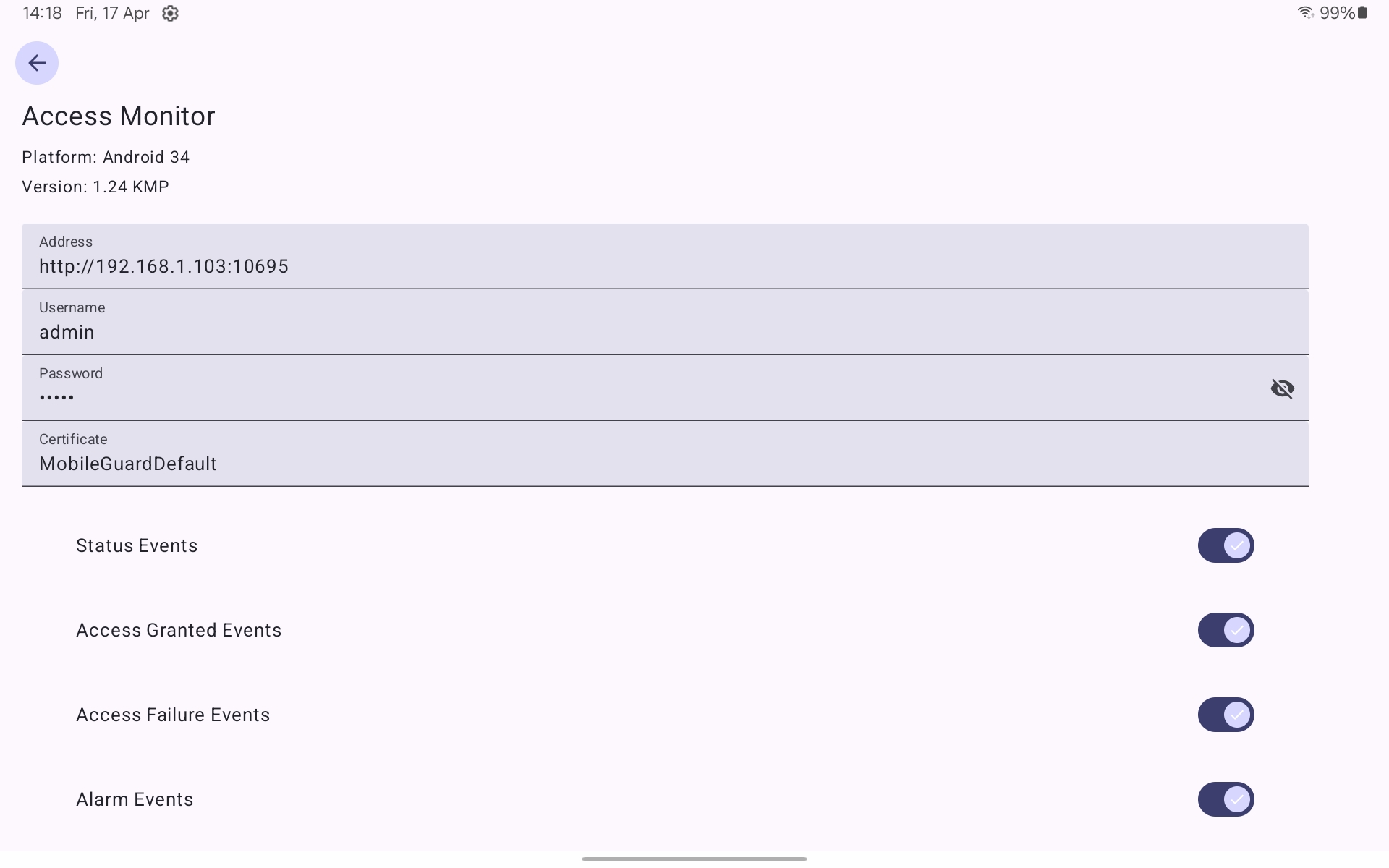
The application connects using:
Server address including port (e.g. http://192.168.1.103:10695)
GuardPoint 10 username
GuardPoint 10 password
User Permissions
Feature availability within the application is dependent on user permissions configured in GuardPoint 10. Different users may have access to different functionality and system elements.
[ See 7. ]
3. Reader Selection
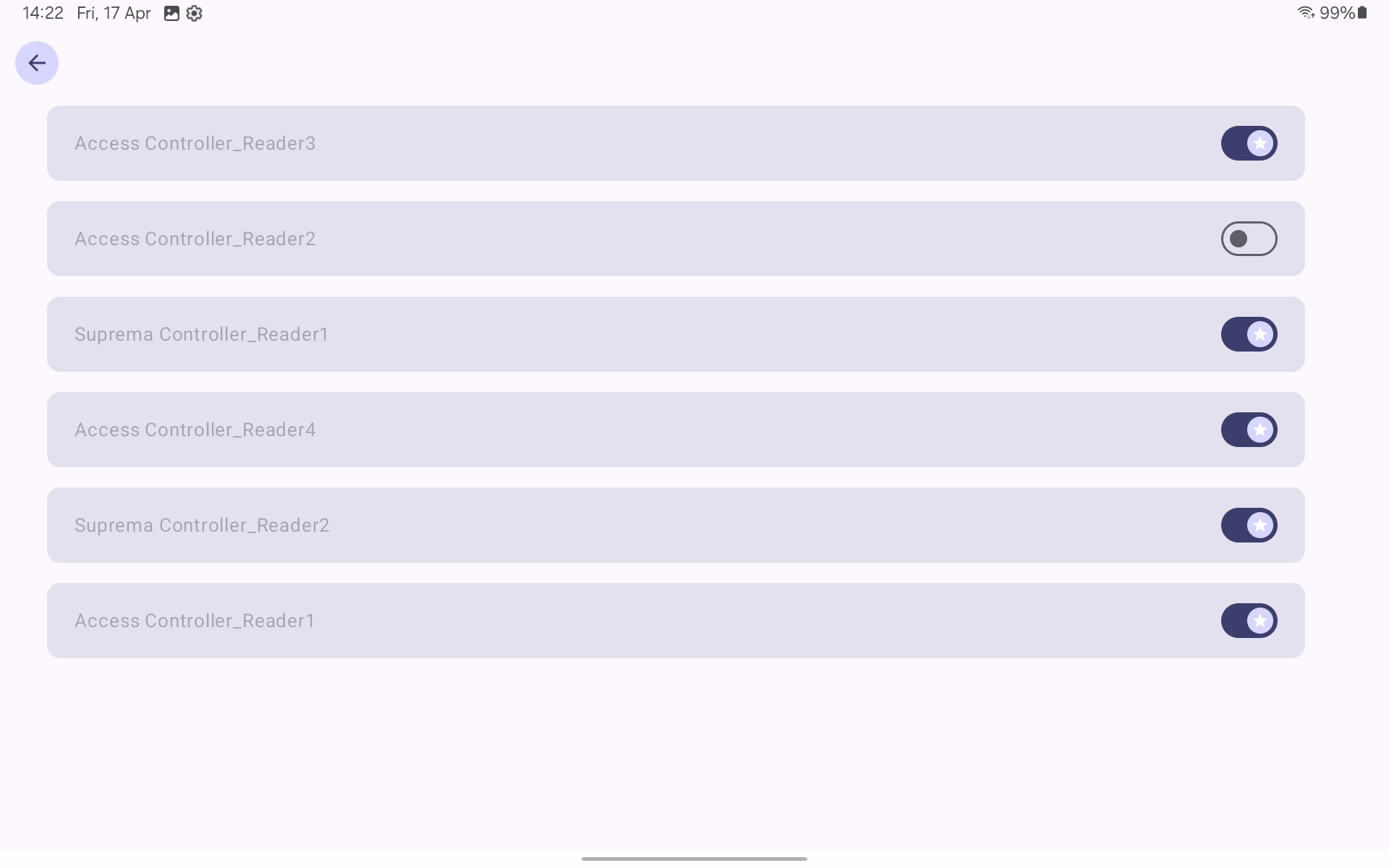
The Readers screen allows the user to define which readers are included in the monitoring scope.
Reader data is retrieved from the GuardPoint 10 infrastructure configuration. Selecting or deselecting readers filters the events displayed in the application.
4. Alarm Management
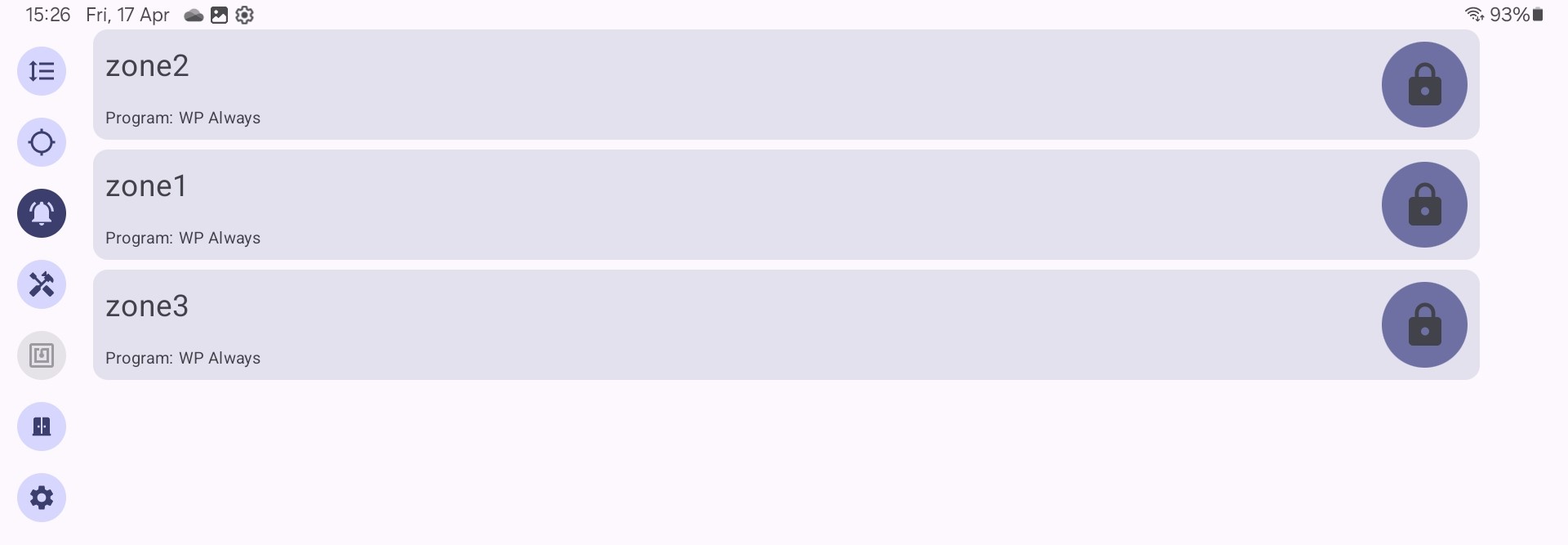
The application provides the ability to manage alarm zones configured within GuardPoint 10.
Users can arm and disarm alarm zones and view their current state. These operations are executed through the API and reflect the configuration defined in the GuardPoint 10 alarm zone setup.

5. Actions (Global Reflex Manual Events)
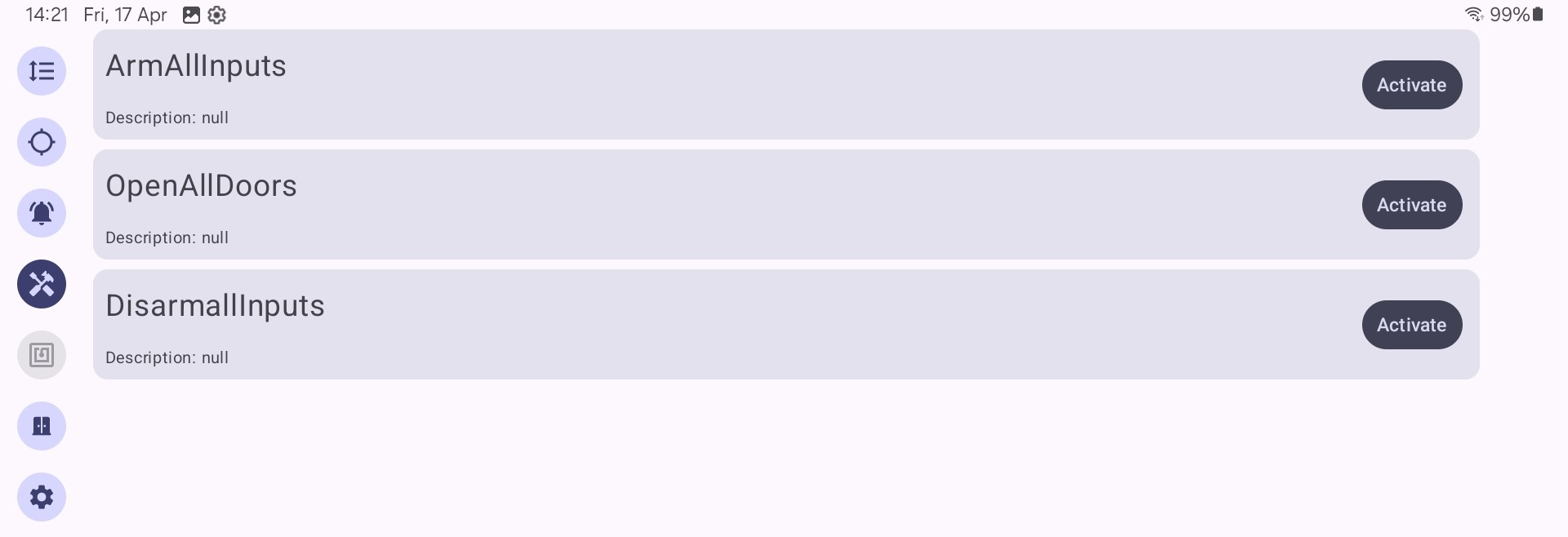
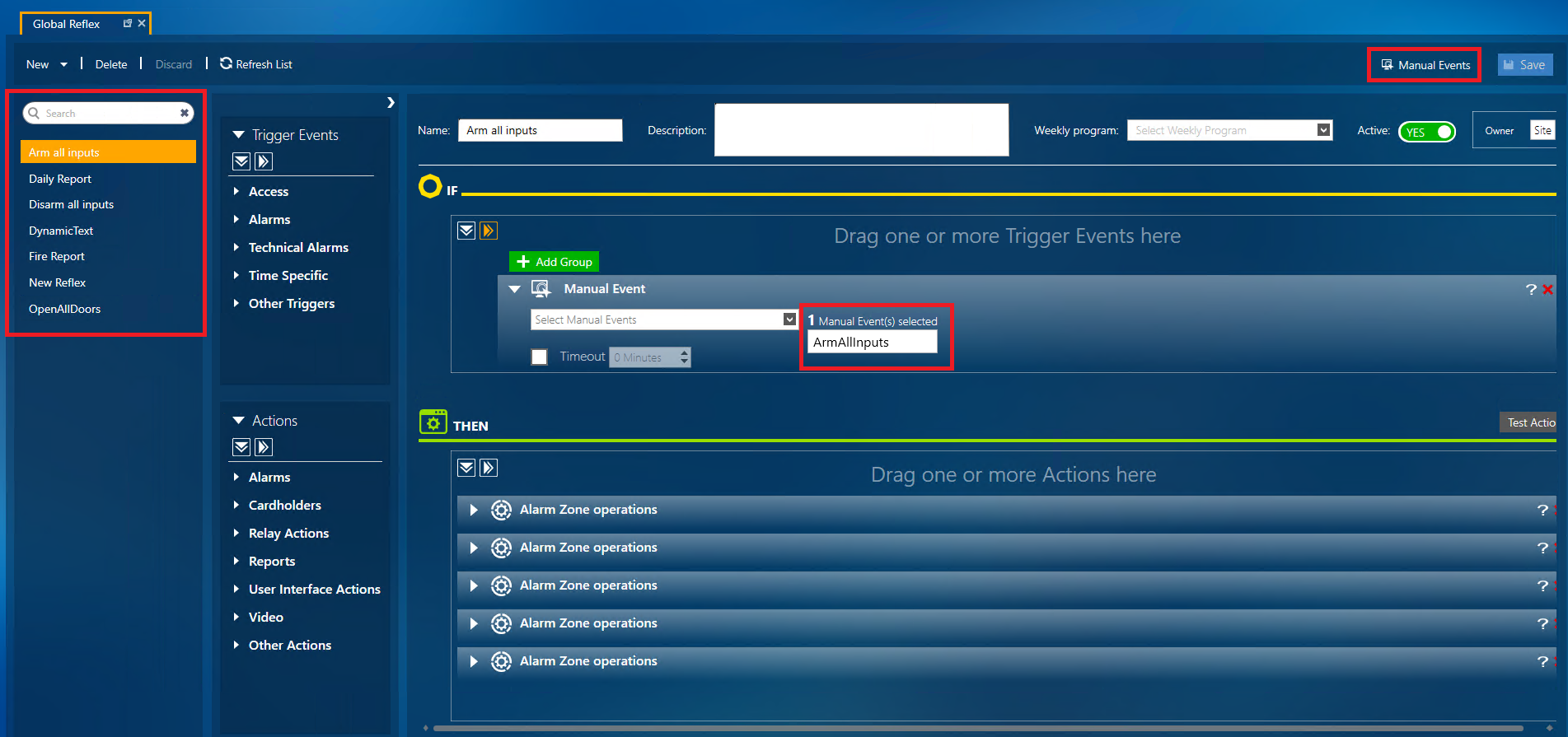
The application allows execution of manual actions configured in the Global Reflex module.
These actions are predefined within GuardPoint 10 and exposed via the API for external triggering.
Examples include:
- Disarming inputs
- Displaying messages
- Generating reports
- Sending emails
- Opening doors
The Global Reflex module provides a rule-based mechanism for triggering system actions.
For more advanced functionality, the Advanced Global Reflex module (GP10-AGR) may be required.
This guide does not cover the configuration of Global Reflexes. For further details, refer to the GuardPoint 10 help section or contact support.
6. Area Monitoring
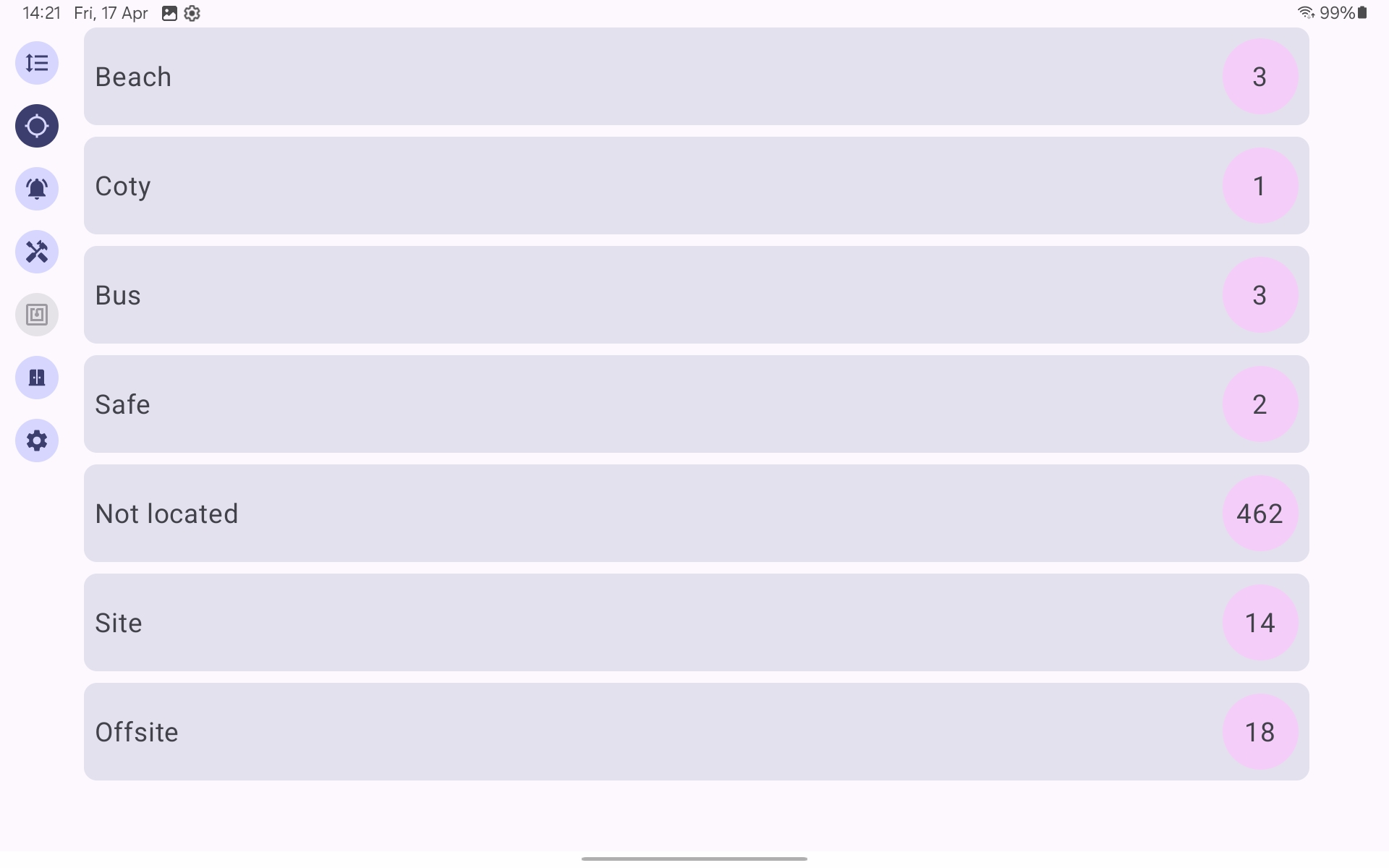
The application displays real-time occupancy data for areas configured within GuardPoint 10.
Area information is derived from the Area Management module, which tracks cardholder movement based on reader activity.
The system maintains live counts of individuals within each defined area.
7. Advanced Parameters
User-Based Feature Visibility
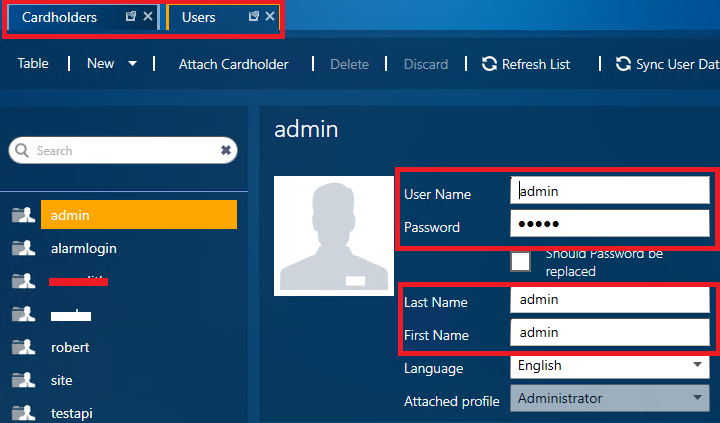
Advanced feature visibility within the application is controlled through configuration of Alarm Zones, Manual Events, and Cardholder Customised Fields in GuardPoint 10.
This functionality relies on matching a system user to a corresponding cardholder record, along with defining permitted actions via specific syntax.
7.1. Alarm Zone Configuration
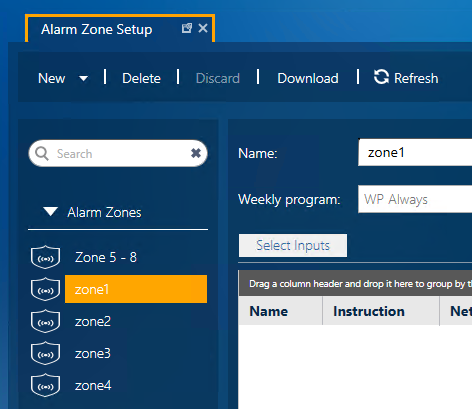
Alarm Zones must be pre-configured, and their names are used as part of the permission syntax.
Navigate to:
Setup → Alarm Zones
- Create or review the required Alarm Zones
- The exact Alarm Zone Name will be used as the parameter value
7.2. Manual Events Configuration
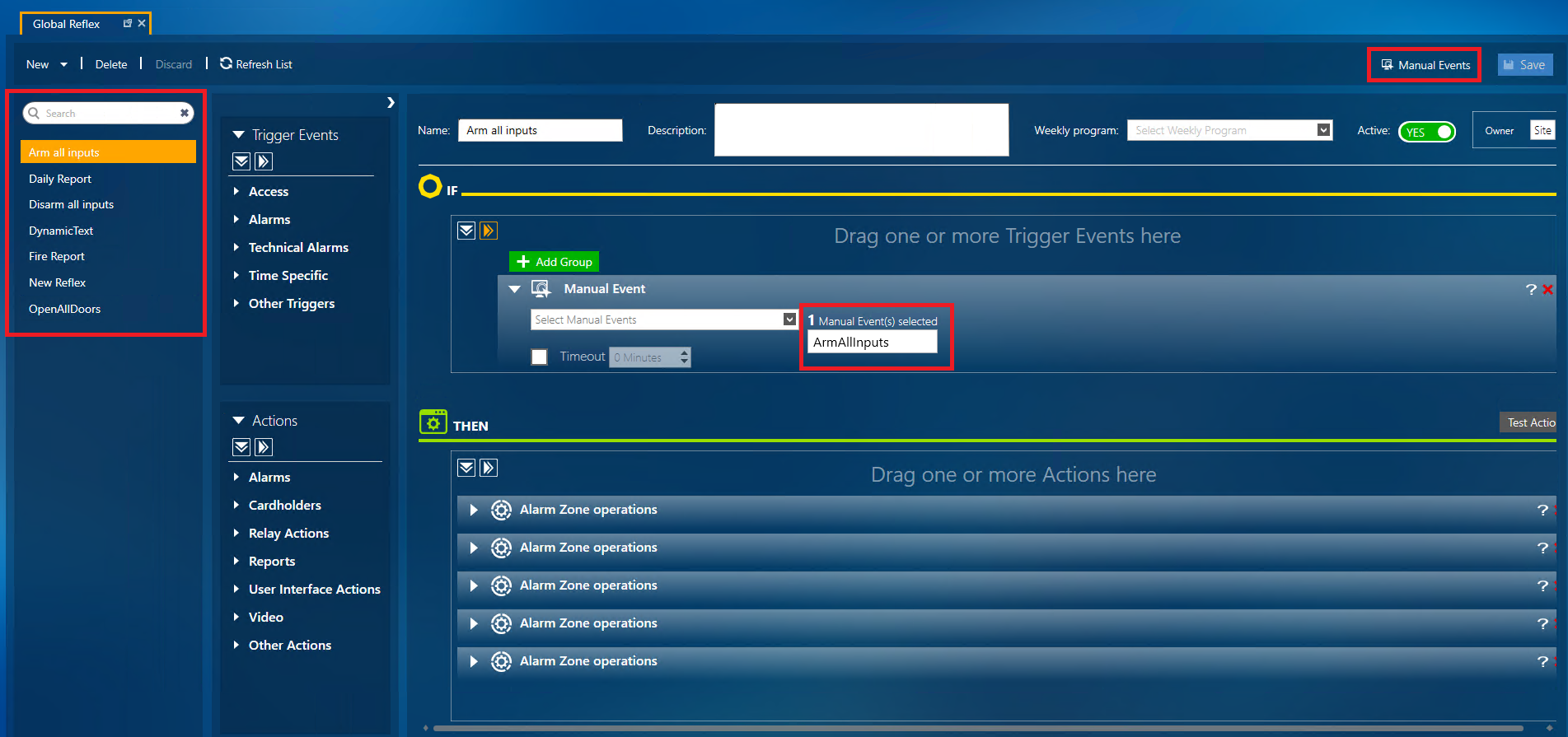
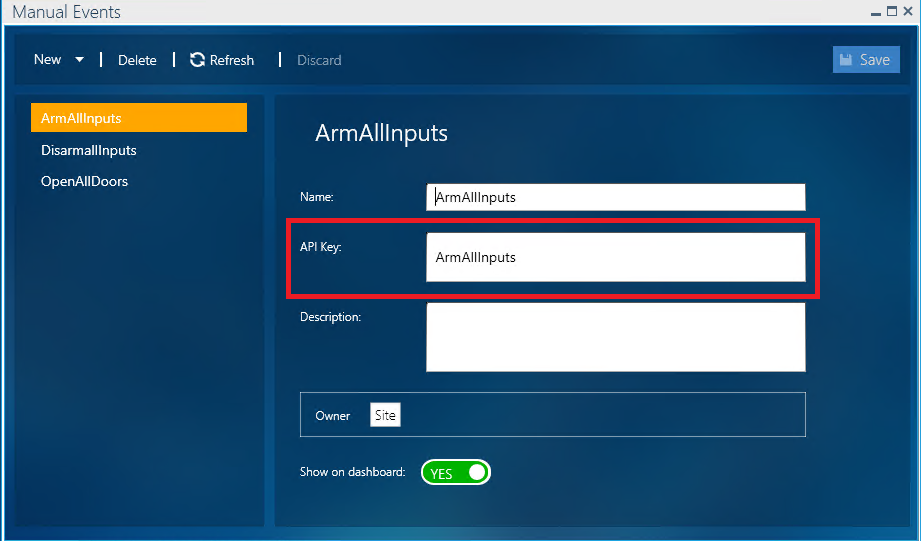
Manual Events must also be configured, and their API Keys field are used as part of the permission syntax.
Navigate to:
Setup → Global Reflex → Manual Events
- Create or review the required Manual Events
- The API Key of the Manual Event is used as the parameter value
7.3. Cardholder Customised Fields
Permissions are assigned via Customised Fields on the cardholder linked to the user.
Navigate to:
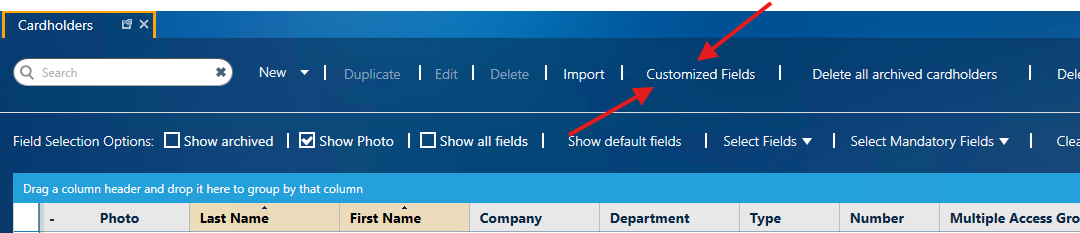
Management → Cardholders
Within the Cardholder configuration:
Create the following Customised Fields(Text type):
permittedAlarmZonespermittedManualEvents
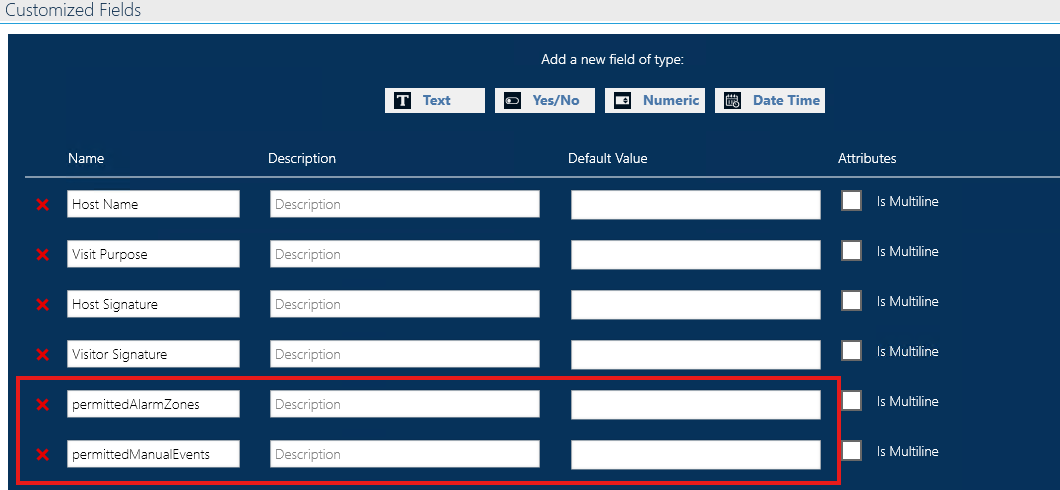
Adding alarm zones in the Default Values will allow them to be accessible by all:
Alternatively leave the Default Value blank and assign per cardholder, as shown below.
7.4. Assigning Permissions to a User
Open the cardholder record corresponding to the application user (e.g. admin/admin).
Within the Customised Fields section:
- In permittedAlarmZones:
Enter the required Alarm Zone names (exact syntax as configured) - In permittedManualEvents:
Enter the required Manual Event API Keys - Multiple entries should be separated by commas (, )
Example format:zoneA, zoneB, zoneCArmAllInputs, OpenAllDoors
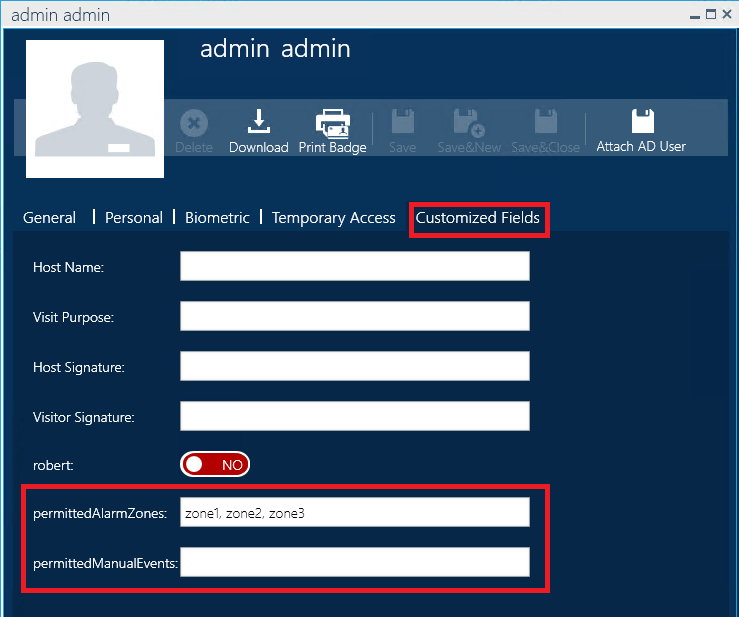
So the app will only show the alarms zones permitted for the user that has logged in
If no Customized Fields are assigned to the cardholder, the application defaults to granting access to all available parameters.
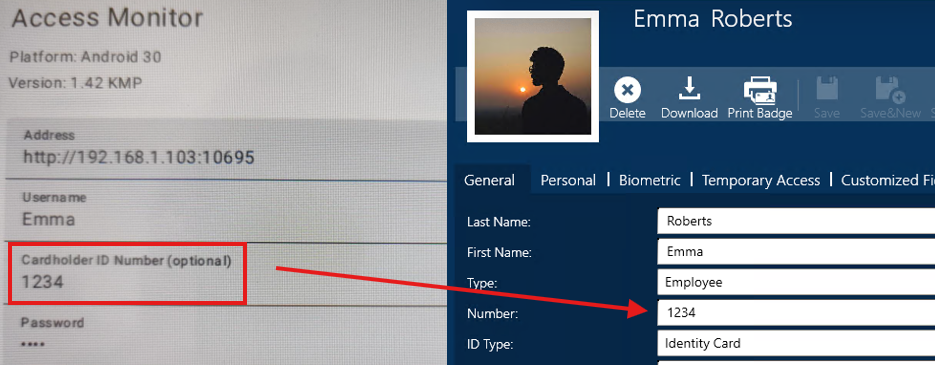
8. Using the Number field and PINs to restrict permissions
A user can be logged into the App showing the specified alarms zones associated with that login, as described above.
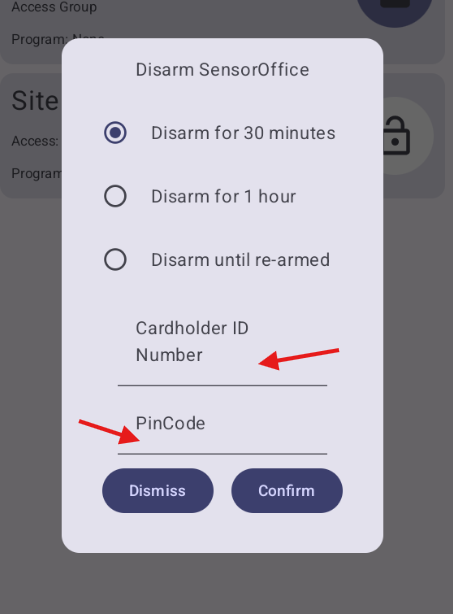
Multiple individuals can then use the App to Arm/Disarm a room by using their own unique number and PIN (despite being logged in under a different user).
- Add a number to your Cardholder
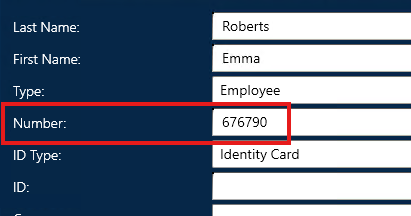
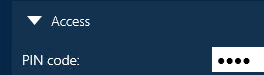
- Add a unique PIN for the Cardholder:
- Ensure your Cardholder has the correct Access Groups assigned to them:

- Add all the relevant Access Groups to the description of your Alarm Zone:
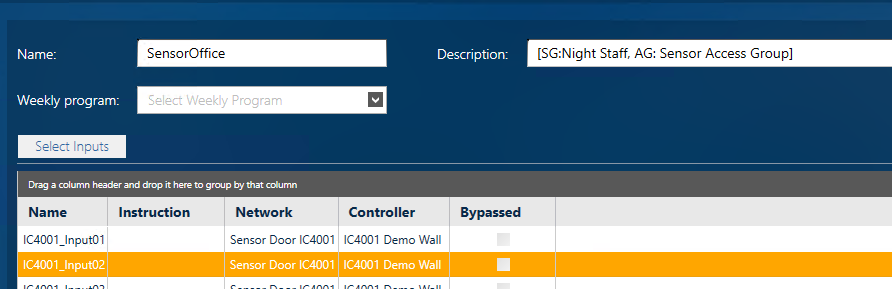
Note:
'SG' refers to Multiple Access Groups (MAGs)
'AG' refers to Personal Door Access Groups.
These must be written within square brackets []
If you want to add multiple groups, you can do so like this:
[SG:Night Staff, SG:Kitchen, AG:Office1, AG: Sensor Access Group] - The cardholder now has access to the Alarm within the app, which they can trigger using their unique Number and PIN code. This will work even when a different user is logged in to the app:
9. Input Already Triggered
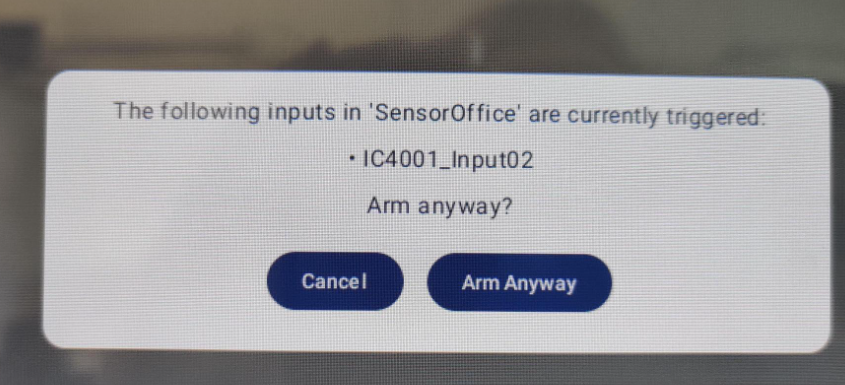
If an Input is already triggered when attempting to arm a zone, the App will now let you know and give you the option to Cancel or Arm Anyway:
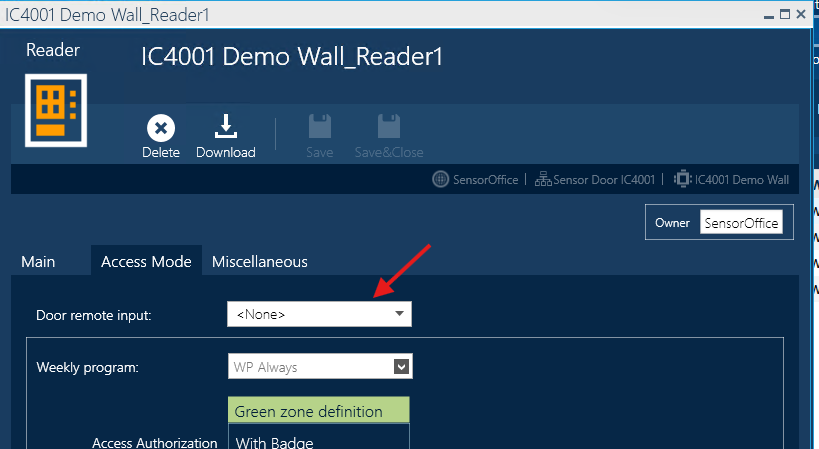
NOTE - Any input that is an Exit button will be ignored. You can change this from the Reader settings in GP10. Just update 'Door remote input' to None, as shown below:
If you require further information or assistance, please contact support@sensoraccess.co.uk and reference this document.
Was this article helpful?
That’s Great!
Thank you for your feedback
Sorry! We couldn't be helpful
Thank you for your feedback
Feedback sent
We appreciate your effort and will try to fix the article