VMS - Sign-in Flows
Every site signs visitors in differently, so Sensor VMS lets you build a sign-in flow that suits each customer, or pick one of our pre-made flows. For example, you can:
- ask visitors to accept a workplace policy, and write your own policy wording
- brand the sign-in screens with the customer's own logo
- have visitors pre-booked, or let them sign themselves in
- show the visitor badge on screen or email it to the visitor
- take the visitor's photo during sign-in for their badge
- add or remove required fields
The examples below show four sign-in flows built this way. You can try them yourself on sensorvms.com.
1. Guest Self Sign-in
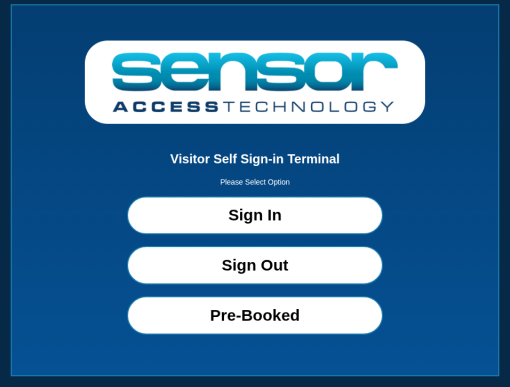
The Visitor Self Sign-in Terminal screen gives the visitor three options: Sign In, Sign Out and Pre-Booked.
Sign In
- Press Sign In.
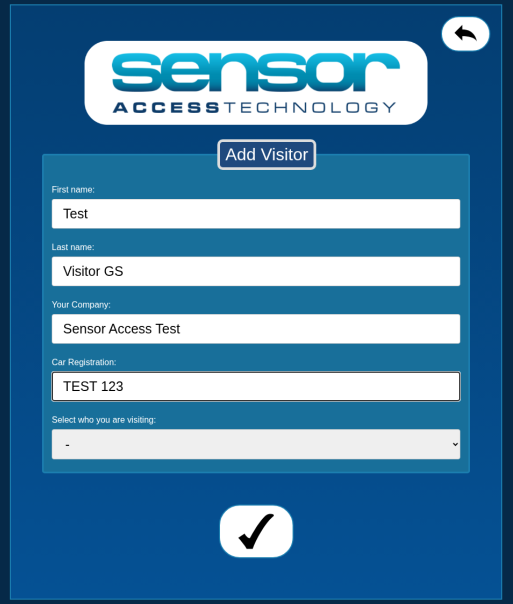
- On the Add Visitor screen, enter your first name, last name and company. Car Registration is optional.
- Choose the person you are visiting from Select who you are visiting, then press the tick.
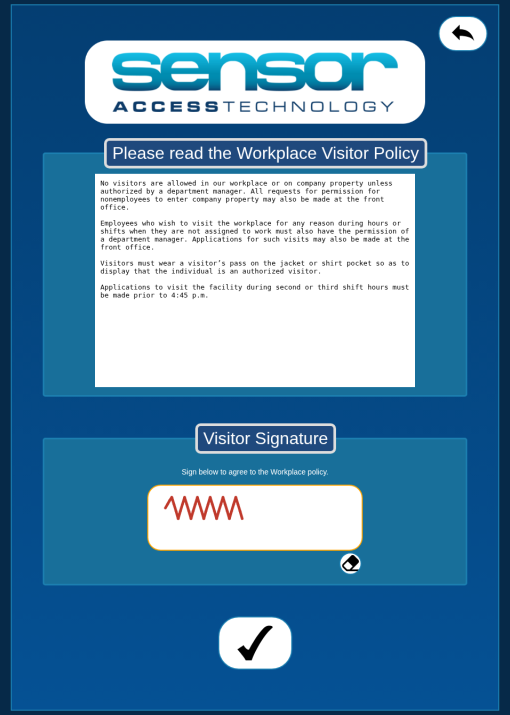
- Read the Workplace Visitor Policy, then sign in the Visitor Signature box to agree. Use the eraser to clear the signature and sign again.
- Press the tick.
- The screen shows Submission Successful.

Sign Out
- Press Sign Out on the start screen.
- In Visitor Search, enter your name or company, then press the tick.
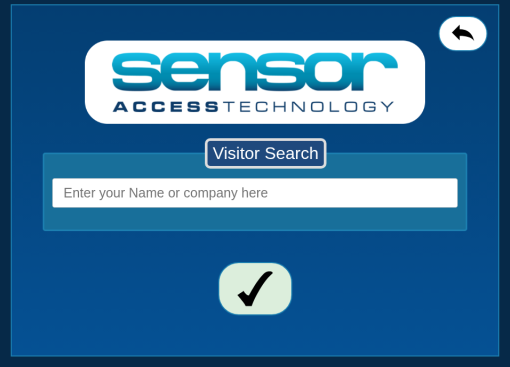
- Find your record in the results and press Sign Out.
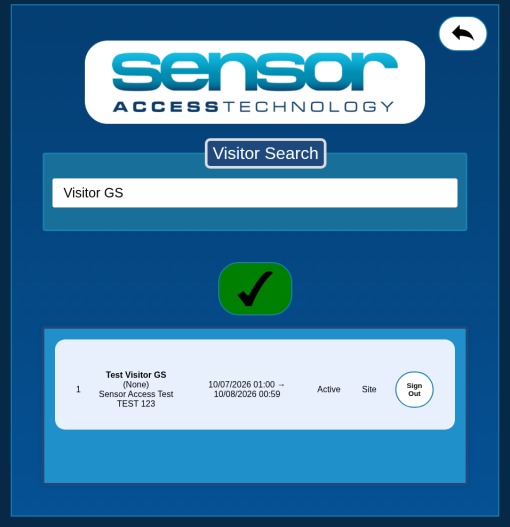
- The screen shows Sign-Out Success.

Pre-Booked
For visitors who have been booked in advance.
- Press Pre-Booked on the start screen.
- In Visitor Search, enter your email address, then press the tick.
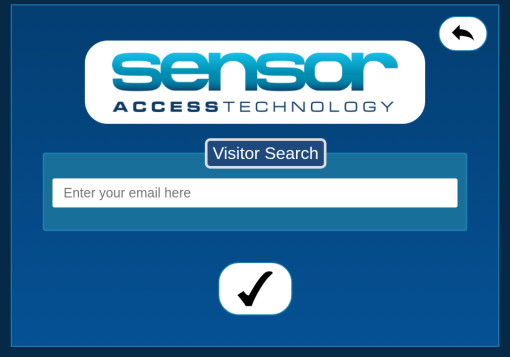
- Find your booking, then sign to agree to the Workplace Visitor Policy.
2. Event Sign-up OTP
The Event Sign-up Terminal screen has a single Sign Up button.

- Press Sign Up.
- On the Add Visitor screen, enter the OTP (one-time passcode) for the event.
- Enter your first name, last name, company and email, then press the tick.
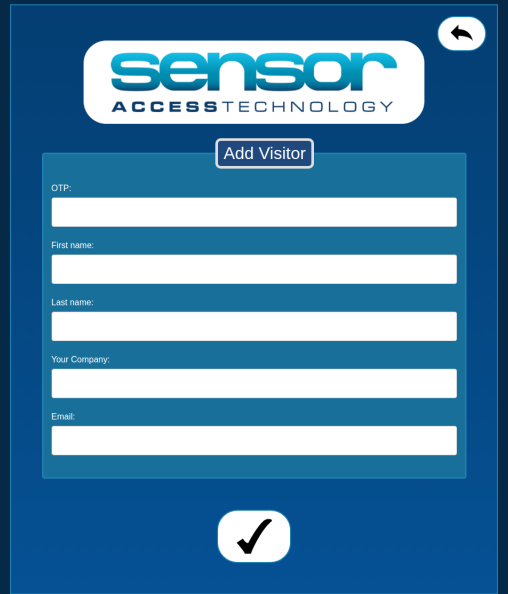
- If the OTP is valid, the screen shows Submission Successful.
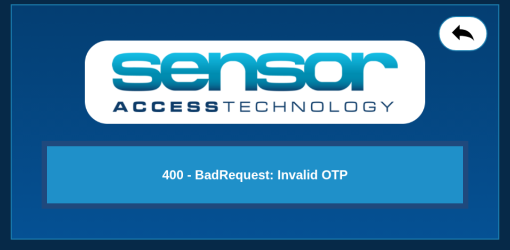
If the OTP is wrong, you will see an Invalid OTP error instead:
3. i3
The Welcome screen tells the visitor to have their camera phone at hand, as they will need to take a photo of the QR-Code Access Pass for entry and exit.
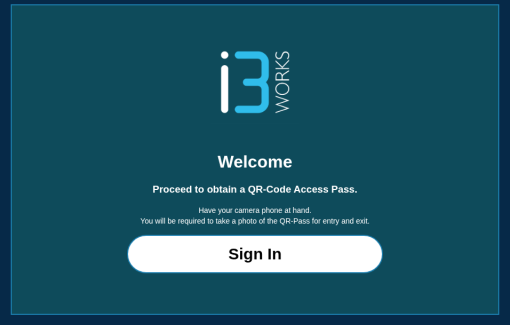
- Press Sign In.
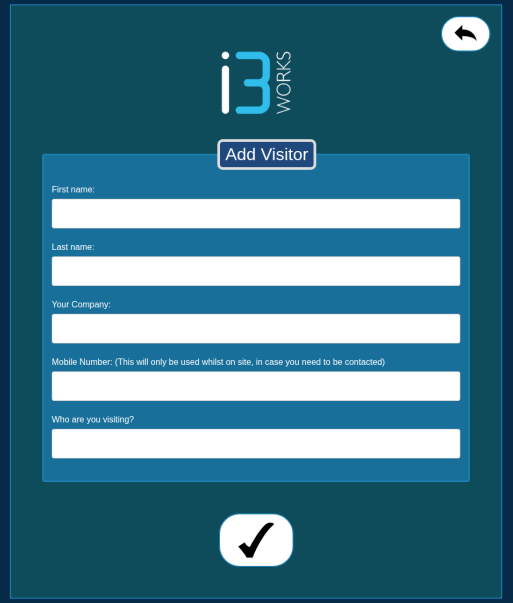
- On the Add Visitor screen, enter your first name, last name, company and mobile number. The mobile number is only used while you are on site, in case you need to be contacted.
- Enter who you are visiting (required), then press the tick.
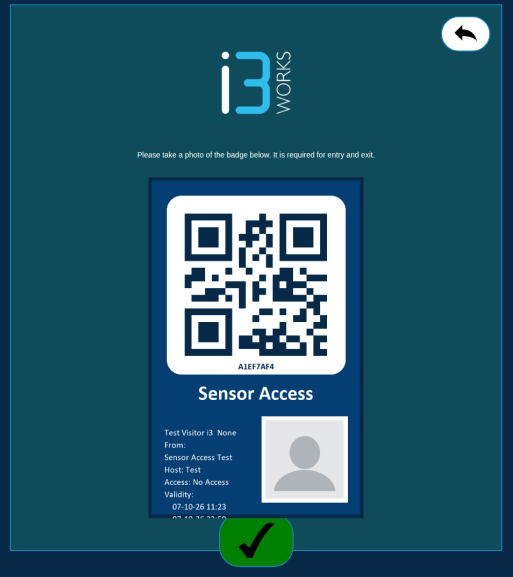
- A QR badge appears. Take a photo of it with your phone, as it is required for entry and exit. The badge shows the QR code, your name, your company (From), Host, Access and Validity.
4. Infinite
The Visitor Self Sign-in Terminal screen gives three options: New Guest User, Returning User and Sign Out.
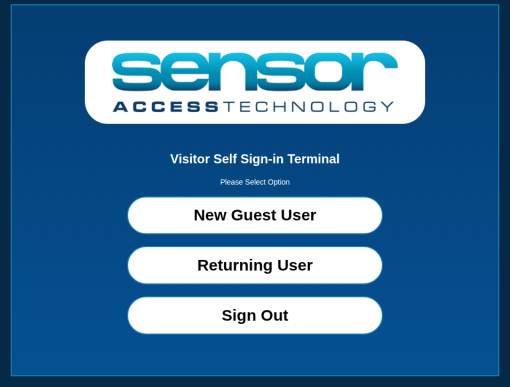
New Guest User
- Press New Guest User.
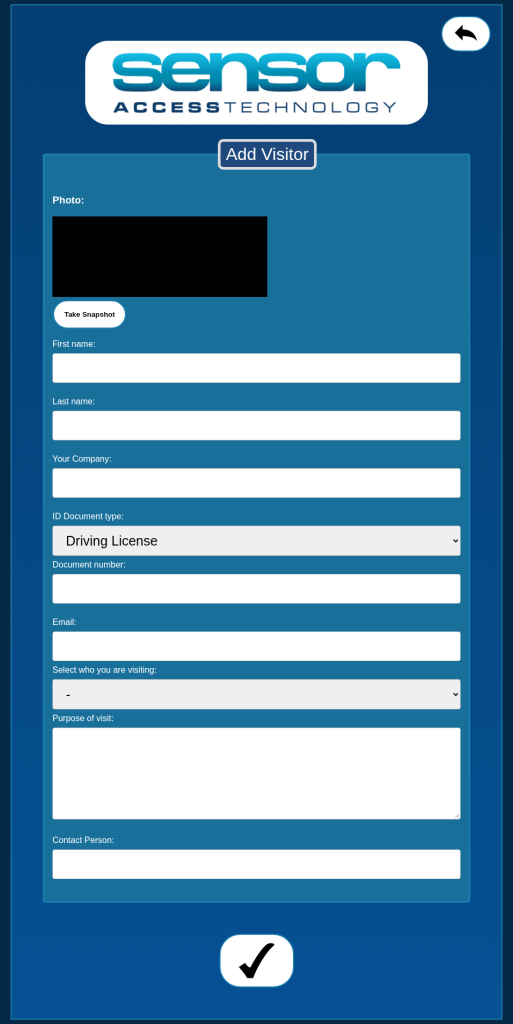
- On the Add Visitor screen, press Take Snapshot to take your photo with the device camera.
- Enter your first name, last name and company.
- Choose your ID Document type (Driving License, Passport or Identity Card) and enter the document number.
- Enter your email, choose who you are visiting, then enter the purpose of your visit and a contact person.
- Press the tick.
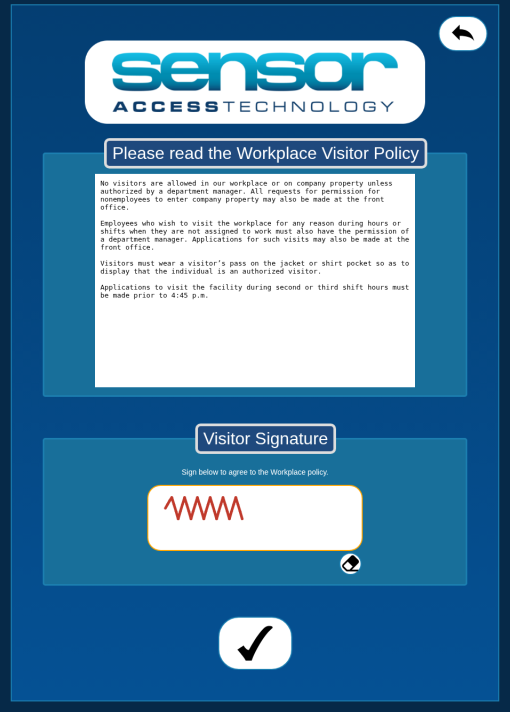
- Read the Workplace Visitor Policy, sign to agree, then press the tick.
- The screen shows Submission Successful.

Returning User
- Press Returning User.
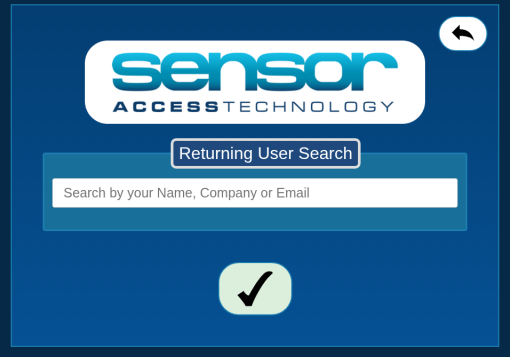
- In Returning User Search, search by your name, company or email, then press the tick.
- Select your record, sign to agree to the Workplace Visitor Policy, then press the tick.
- The screen shows Submission Successful.
Sign Out
- Press Sign Out.
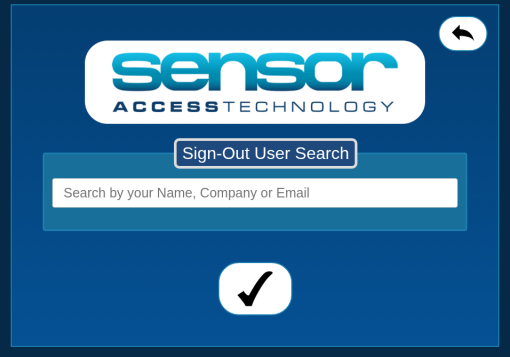
- In Sign-Out User Search, search by your name, company or email, then press the tick.
- Press Sign Out on your record.
- The screen shows Sign-Out Success.

Related articles: VMS Self Sign-in Guide | VMS Administrator Console | VMS - Muster Window
Was this article helpful?
That’s Great!
Thank you for your feedback
Sorry! We couldn't be helpful
Thank you for your feedback
Feedback sent
We appreciate your effort and will try to fix the article