GuardPoint 10 Global Reflex
Run an External Application using Dynamic Text
Dynamic text placeholders were not pulling through the actual value when using 'run an external application' Global Reflex action.
The fix is now within the attached patch (see below: ACS.Common.GlobalReflex.dll ).
Installation:
1. Backup main and journal DB
2. Backup AcsServer located on C:\Program Files (x86)\GuardPoint10\AcsServer
3. Stop ACS Server service via watchdog.
4. Copy patch file to ACS Server installation folder:
C:\Program Files (x86)\GuardPoint10\AcsServer
5. Start ACS Server service via watchdog.
Create a Global Reflex -> Dynamic Text
IF = Access Granted (Any CardHolder)

THEN = Run an external application
In the arguments field, add your dynamic test e.g %ch% for Card Holders Name
Configure it to run a batch file that writes arguments to a txt file
eg:
Application: cmd.exe | Arguments: cmd /c echo %ch% >> C:\Temp\test.text
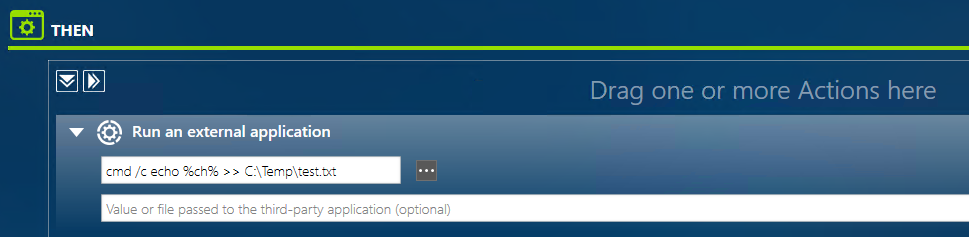
Swipe your card (Access Granted Event)
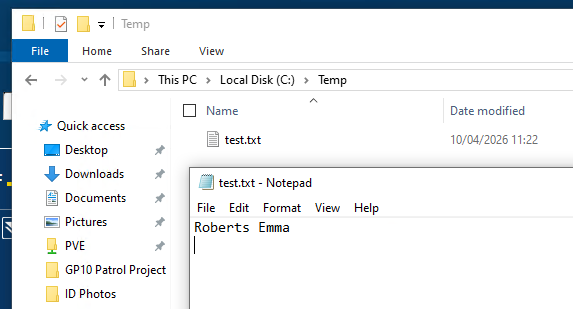
Check C:\Temp\test.text it should now contain a file containing your Card Holders name:
To add additional details you can use the following dynamic codes:
| Cardholder Name | "%ch%" |
| CardholderUID | "%cardholderUID%" |
| Controller Name | "%controllerName%" |
| Controller UID | "%controllerUID%" |
| Input Name | "%input%" |
| Input UID | "%inputUID%" |
| Reader Name | "%reader%" |
| Reader UID | "%readerUID%" |
| Log Date | "%logDate%" |
Alternatively if you prefer you can write your script within a bat file and pass the dynamic code into the value field of the external application:
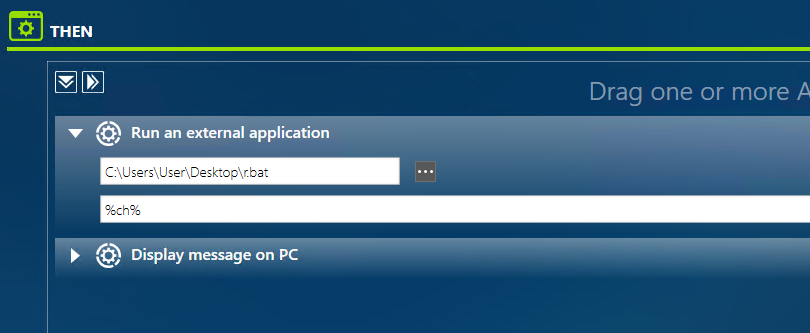

For Python
Check Python is installed (type python in the command line)
Import pyGuardPoint via pip :
python -m pip install pyGuardPointOR
pip install pyGuardPoint
Create your script and save as a py file: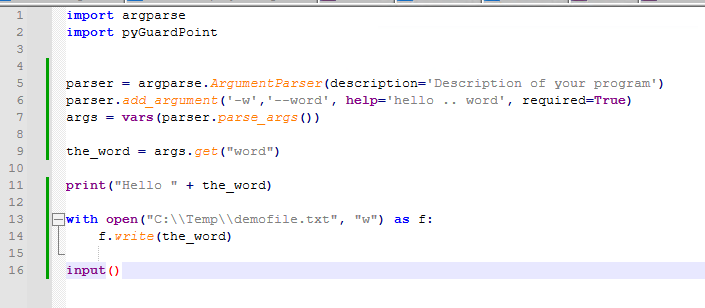
( input() just pauses the console )In GP10, Global Reflex -> Run an External application - you need to point to the python execution file first, before your script:
C:\Users\User\AppData\Local\Python\bin\python.exe C:\Temp\script.py -w
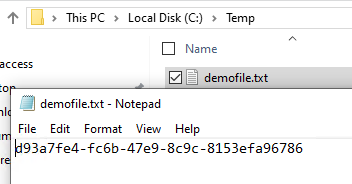
Add your value in the second line, as shown below: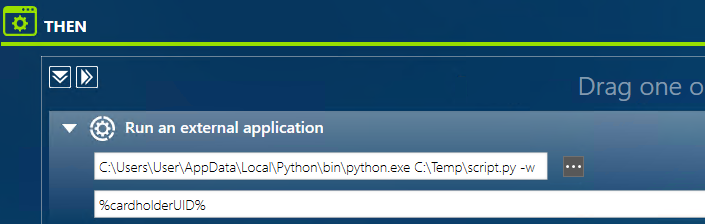
Was this article helpful?
That’s Great!
Thank you for your feedback
Sorry! We couldn't be helpful
Thank you for your feedback
Feedback sent
We appreciate your effort and will try to fix the article