GuardPoint 10 – Enabling HTTPS for API (Self-Signed Certificate Method)
Overview
By default, the GuardPoint 10 API communicates over HTTP. This guide explains how to enable HTTPS using a self-signed certificate, removing the need for tools like stunnel in simple deployments.
The GuardPoint 10 API is a RESTful service using HTTP requests (GET, POST, PUT, DELETE) , so switching to HTTPS ensures encrypted communication for integrations.
Prerequisites
- GuardPoint 10 version 1.100.73 or higher
- Local administrator access
- PowerShell access
- Backup of:
C:\Program Files (x86)\Guardpoint10C:\ProgramData\ACS

Step 1 – Prepare Certificate Script
Open the provided file:
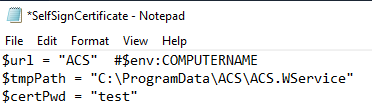
SelfSignCertificate.ps1Edit the following line:
$certPwd = "yourpassword"- Save the file.
Step 2 – Copy Script to ACS Folder
Copy the script to:
C:\ProgramData\ACS
Step 3 – Run PowerShell Script
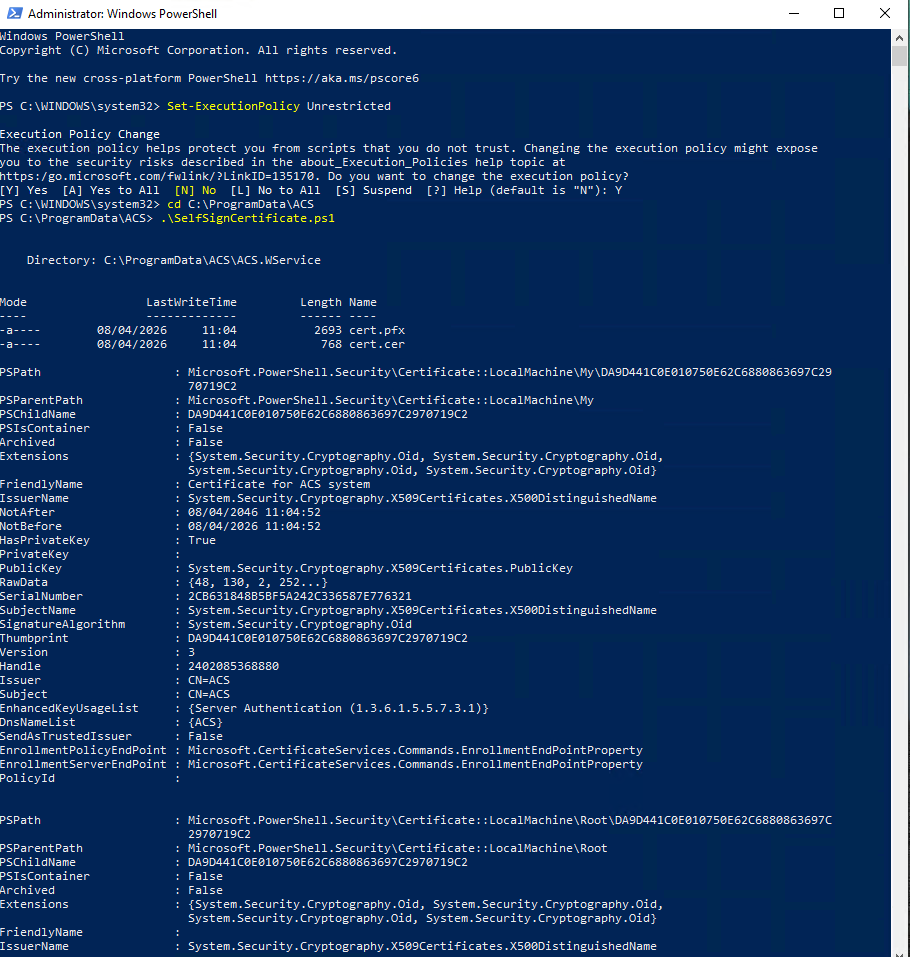
- Open PowerShell as Administrator
Run:
Set-ExecutionPolicy Unrestricted→ Press Y
Navigate to:
cd C:\ProgramData\ACSRun:
.\SelfSignCertificate.ps1→ Press R
This installs the “ACS” certificate
Step 4 – Verify Certificate
- Press Win + R
Type:
certmgr.mscNavigate:
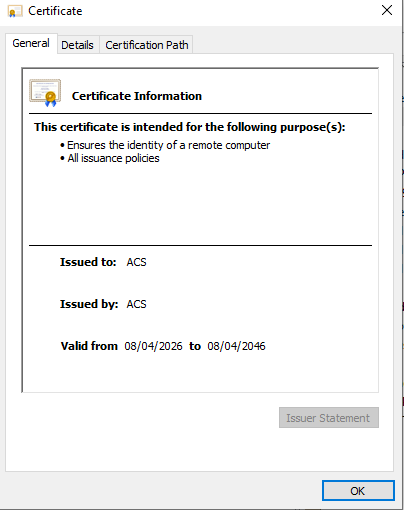
Certificates – Current User → Trusted Root Certification Authorities → Certificates- Open certificate “ACS”
- Check Valid From date

Step 5 – Install Certificate to Local Machine
Go to:
C:\ProgramData\ACS\ACS.WServiceOpen:
cert.cer
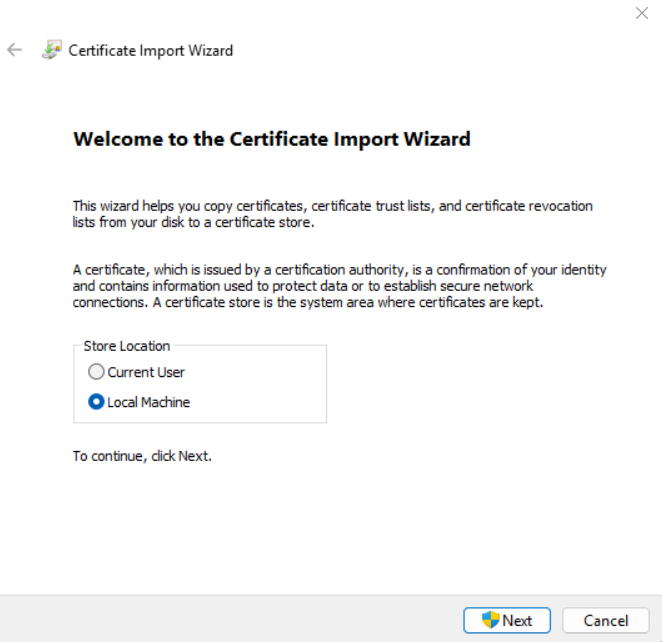
- Click Install Certificate
- Select:
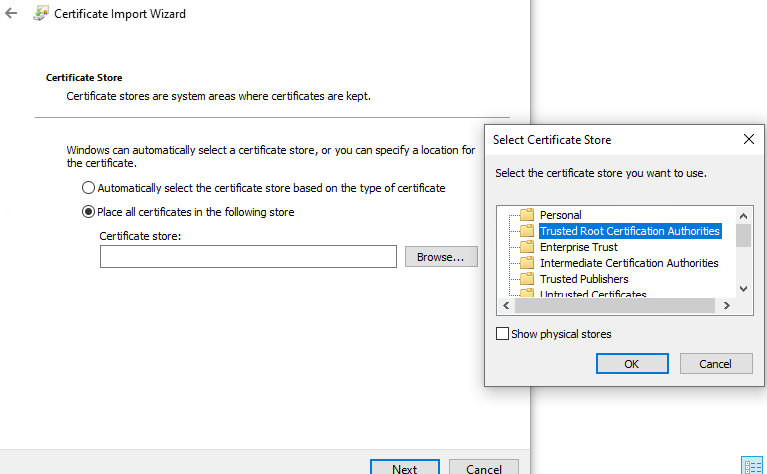
- Store Location: Local Machine
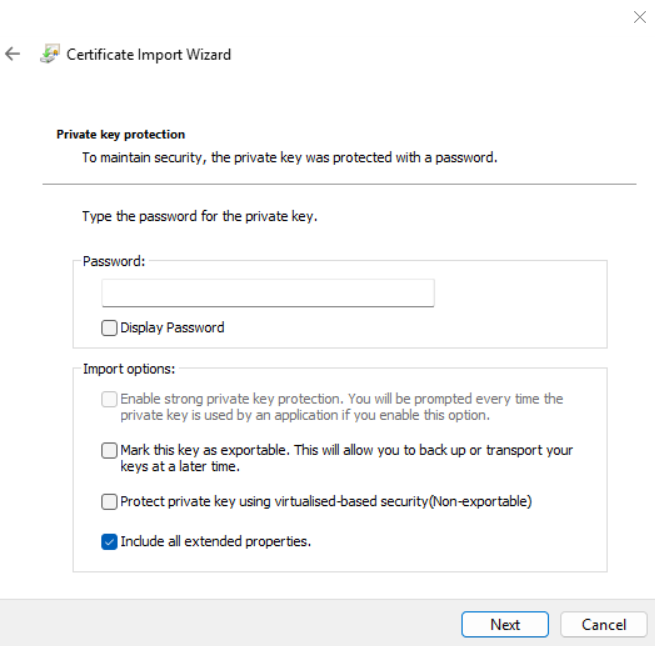
- Enter Certificate Password
- Store: Trusted Root Certification Authorities
Step 6 – Stop Services
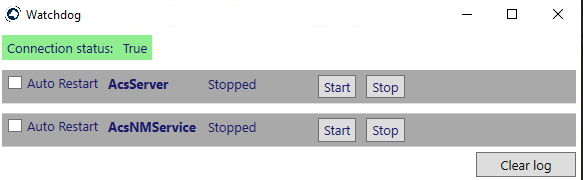
Stop services via Watchdog:
- AcsServer
- AcsApiService
Step 7 – Enable HTTPS (ACS.WService config)
Open [with notepad++]:
C:\ProgramData\ACS\ACS.WService\[ComputerName].appsettings.json- Replace:
{"Kestrel": {
  "EndPoints": {
    "Http": {
      "Url": "http://0.0.0.0:10695"
    }
  }
},
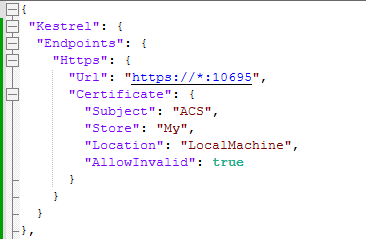
- With:
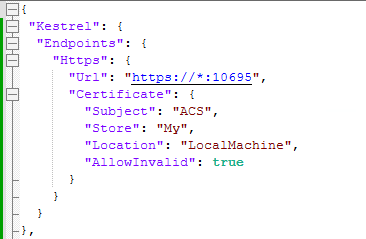
{"Kestrel": {
  "Endpoints": {
    "Https": {
      "Url": "https://*:10695",
      "Certificate": {
        "Subject": "ACS",
        "Store": "My",
        "Location": "LocalMachine",
        "AllowInvalid": true
      }
    }
  }
},
Step 8 – Enable HTTPS (API config)
Open:
C:\Program Files (x86)\GuardPoin10\AcsServer\Api\appsettings.json- Apply the same replacement as above.
Step 9 – Restart Services
Restart via Watchdog:
- AcsServer
- AcsApiService
Step 10 – Test HTTPS (Postman)
- Open Postman
Change:
http://localhost:10695➜
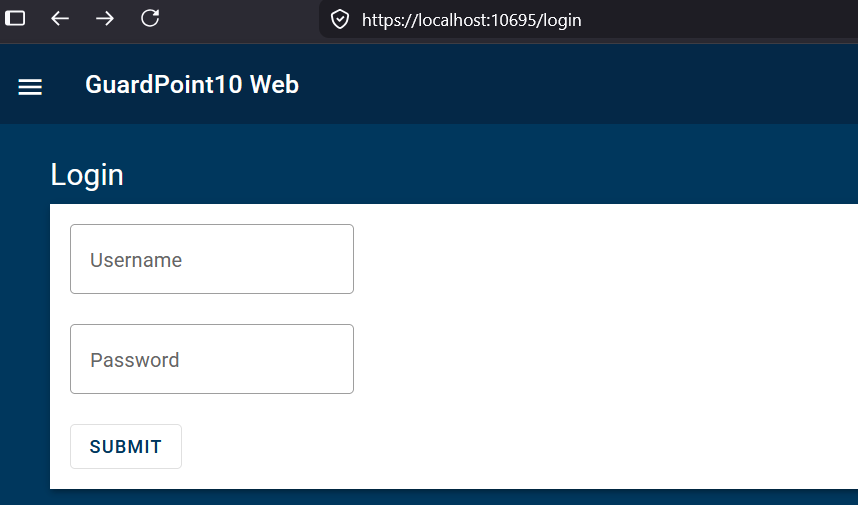
https://localhost:10695- Send test request (e.g. OData call)
API should now respond over HTTPS
Optional – Use Standard HTTPS Port (443)
You can replace port 10695 → 443 in both config files:
"Url": "https://*:443"
Then access via:
https://[ServerName]
Was this article helpful?
That’s Great!
Thank you for your feedback
Sorry! We couldn't be helpful
Thank you for your feedback
Feedback sent
We appreciate your effort and will try to fix the article